> For the complete documentation index, see [llms.txt](https://docs.keeper.io/llms.txt). Markdown versions of documentation pages are available by appending `.md` to page URLs; this page is available as [Markdown](https://docs.keeper.io/user-guides/jp/tips-and-tricks/using-keeper-totp-with-office-365.md).
# AzureまたはOffice 365でKeeper TOTPを使用
Office 365向けTOTPコードの管理とアカウント保護
## Microsoft 2FAの設定
KeeperのTOTP (タイムベースワンタイムパスワード) 機能を使用することで、Azure AD / Office 365へのログイン情報を保護できます。Microsoftでは、デフォルトでプッシュ通知方式に対応した別の通知方式が提供されています。Office 365でTOTP認証をセットアップする手順を以下で解説します。
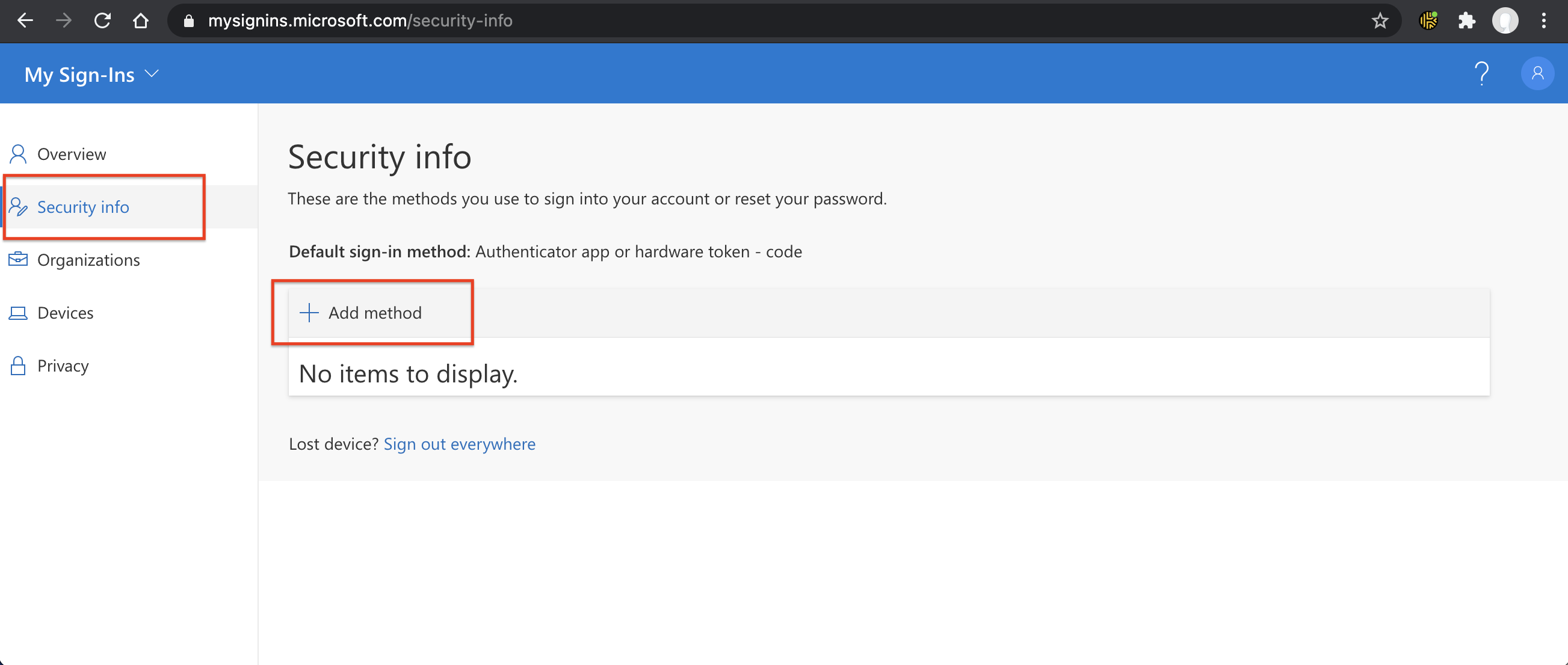
1. Microsoft Azure / Office 365のプロフィール画面から、**セキュリティ設定**画面を開きます。Microsoft のサイトは画面構成が頻繁に変更されるため、ここではリンクは掲載していません。**\[メソッドの追加]**をクリックして、Microsoftアカウントに2要素認証を設定します。
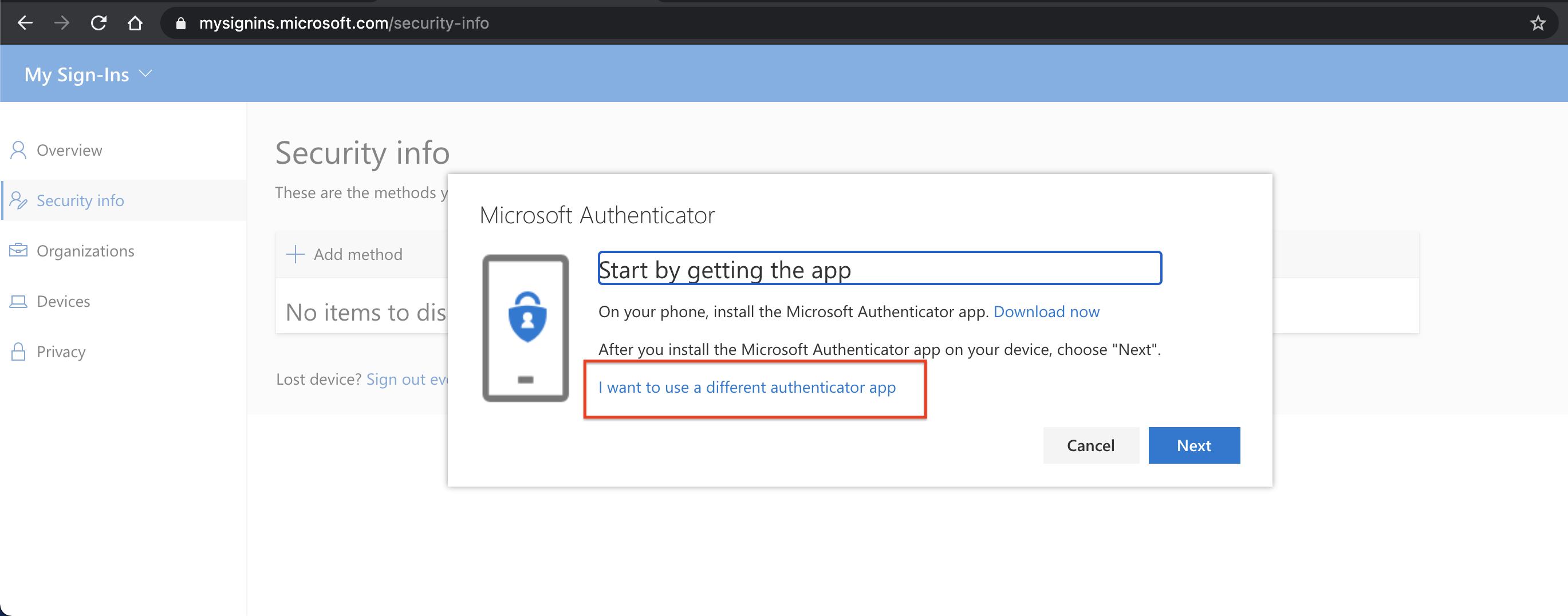
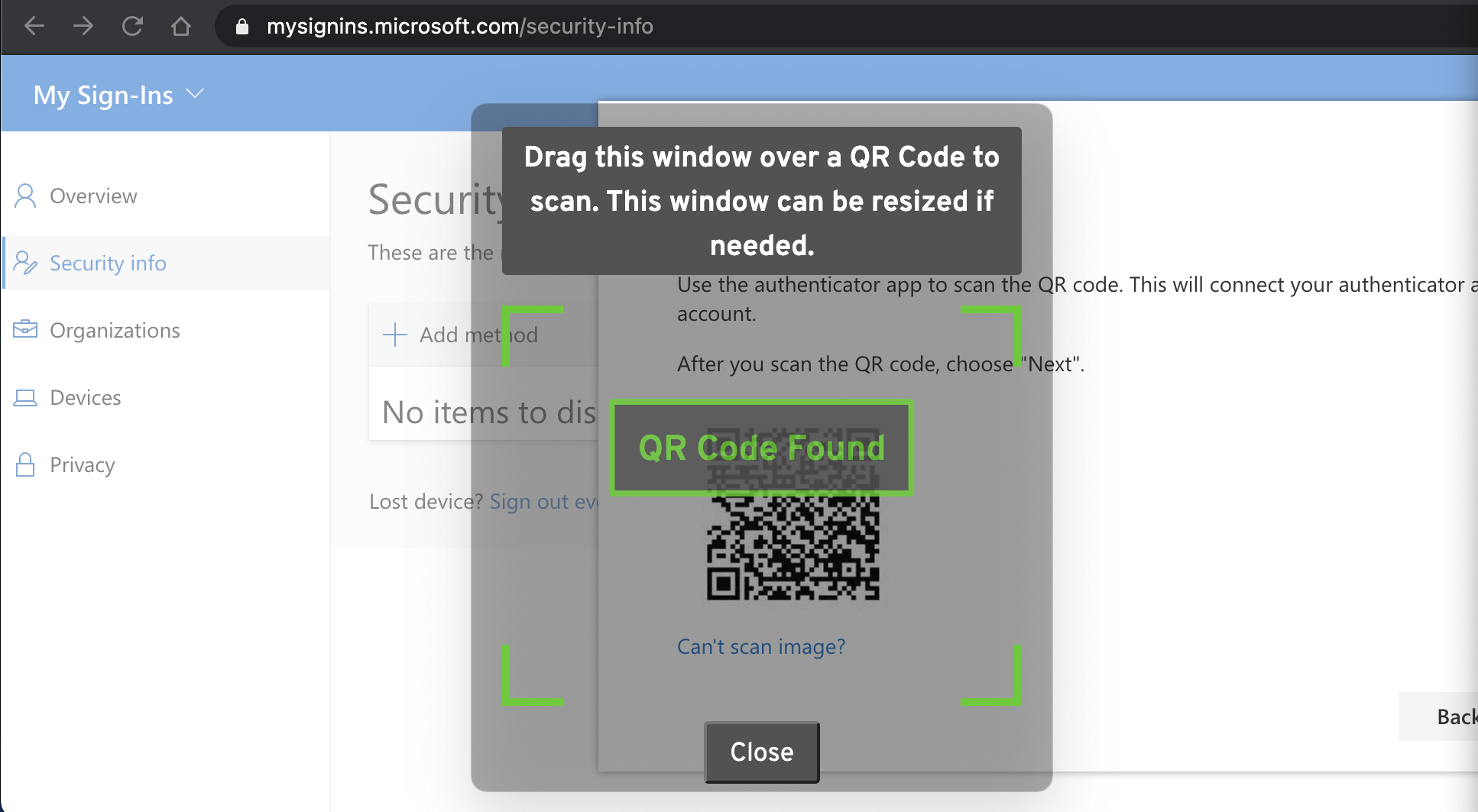
2. **\[別の認証アプリを使用する]** を選択します。
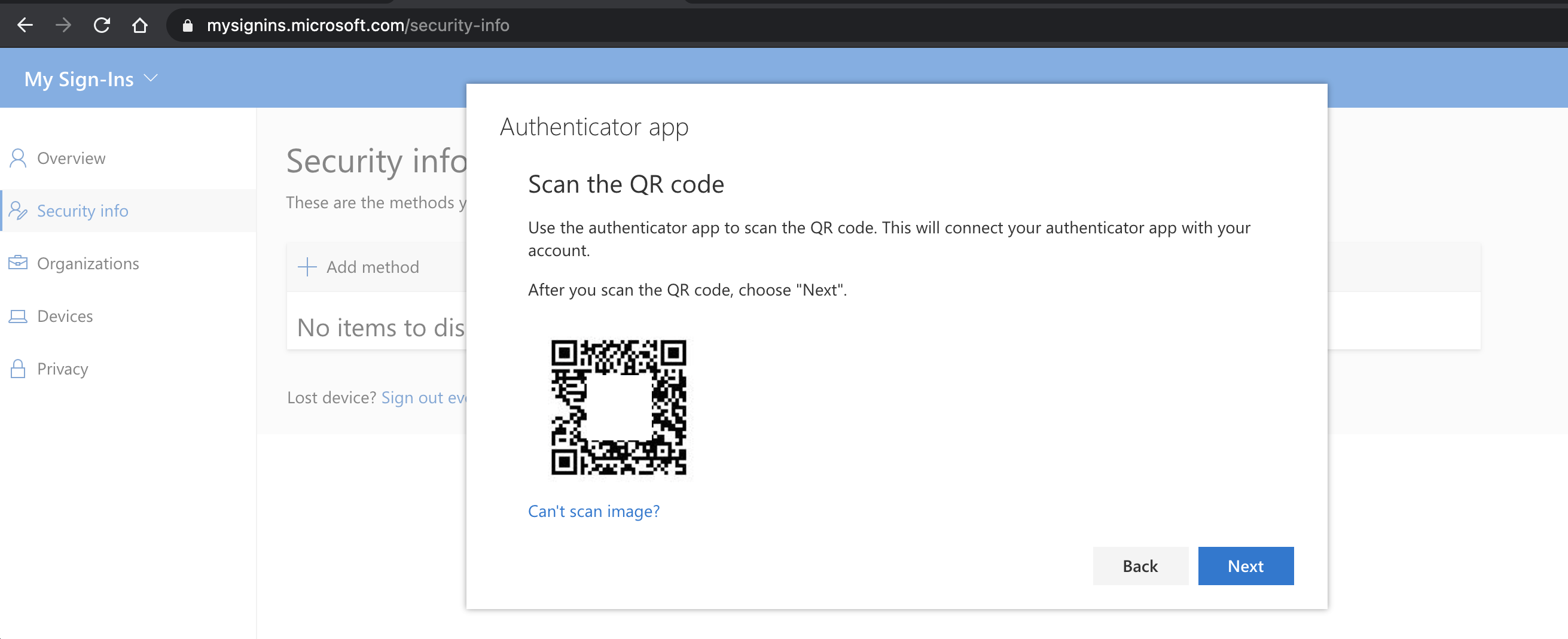
QRコードが生成され、画面に表示されます。
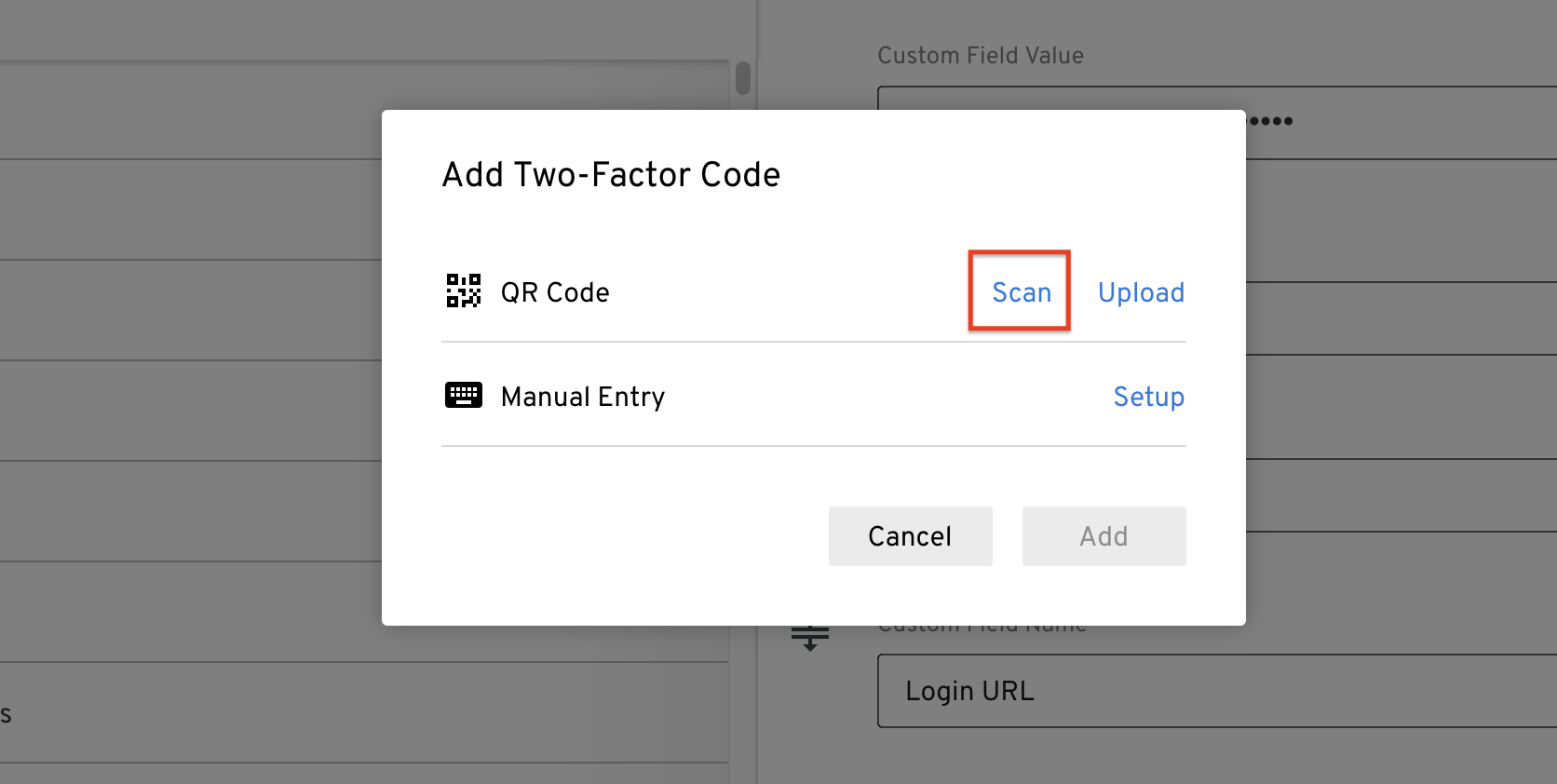
3. Keeperレコードで、**\[2要素認証コードの追加]** をクリックします。 モバイルアプリをご使用の場合は、**\[2要素認証コードの追加]** をタップして端末のカメラで表示されたQRコードをスキャンすることもできます。
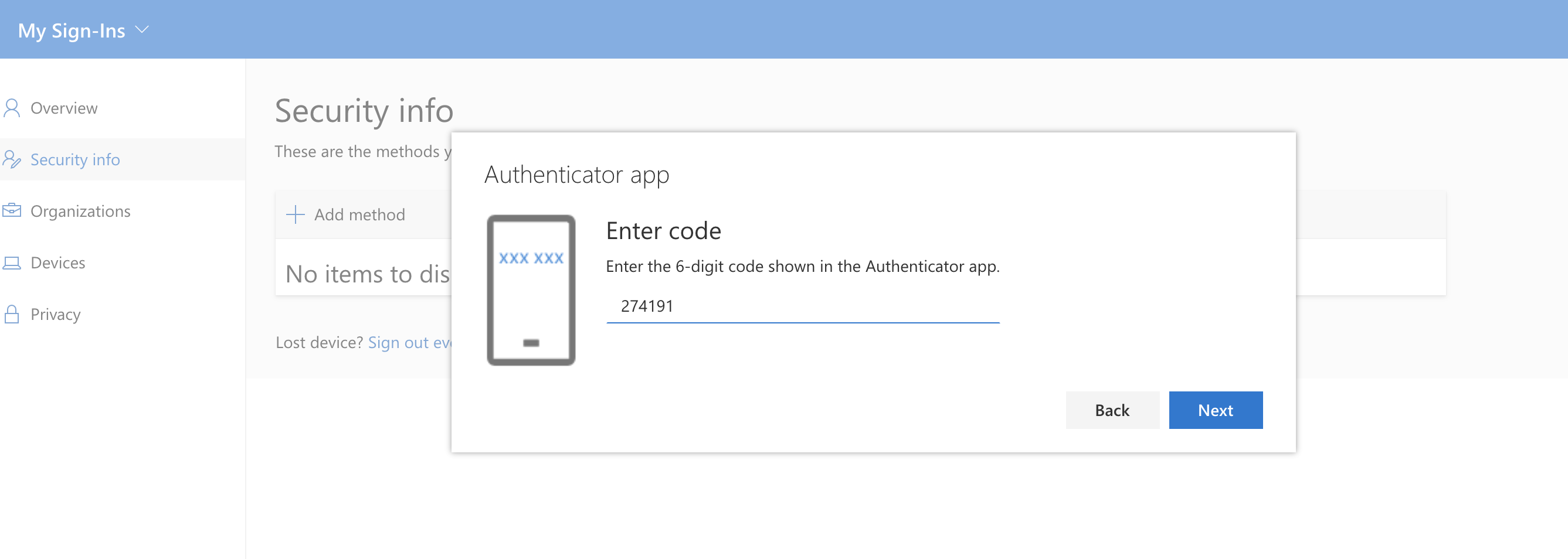
4. Keeperアプリに表示された確認コードを入力します。
5. **\[次へ]** をクリックして、Keeperボルトにレコードを保存します。
{% hint style="success" %}
セットアップを終了する前に、必ずKeeperのレコードを保存してください。
{% endhint %}
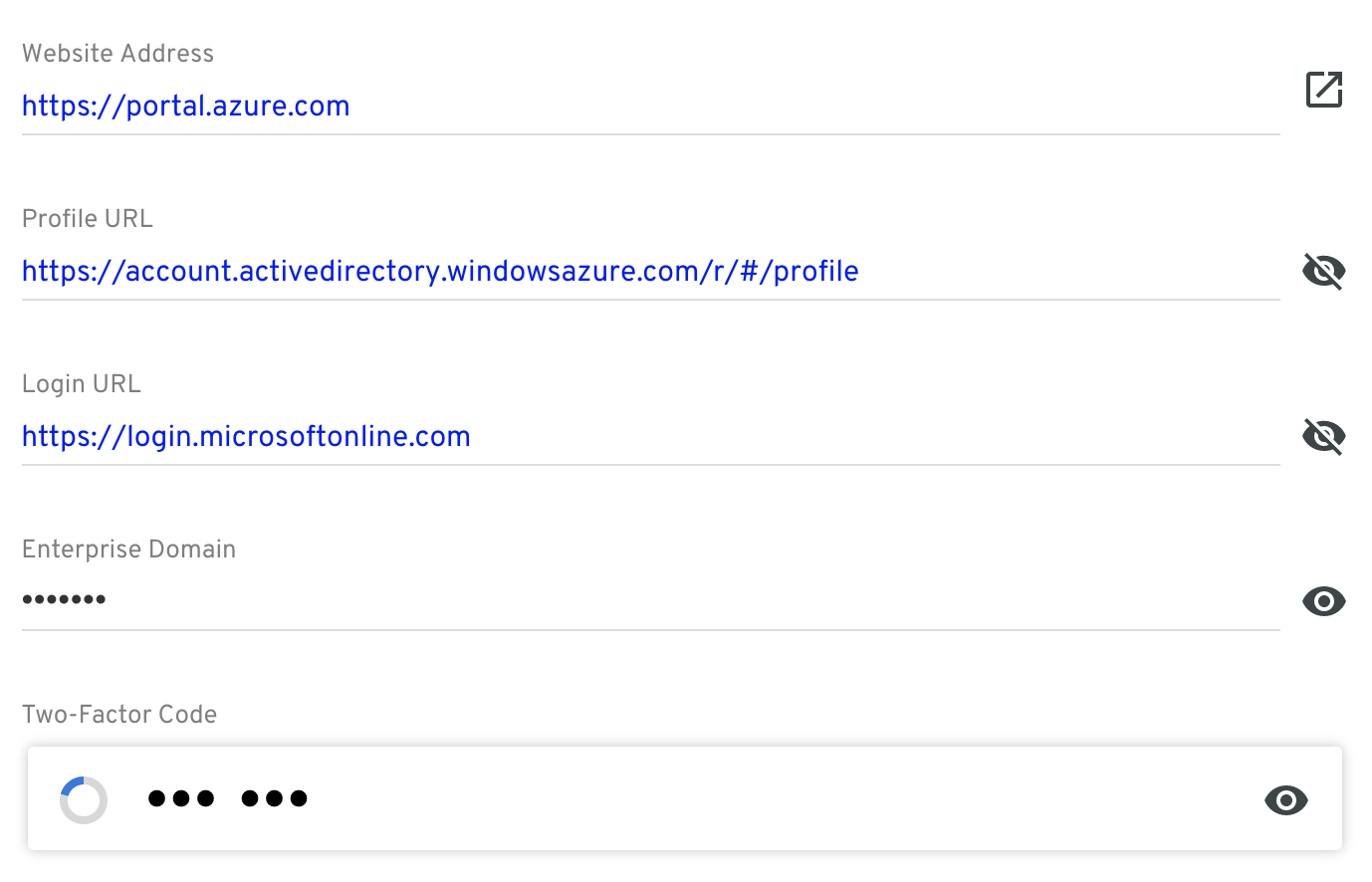
6. 使用しているあらゆるMicrosoftサイトで自動入力が機能するよう、Keeperのレコードに以下のようなカスタムフィールドを追加することを推奨します。
Keeperボルトレコードの設定
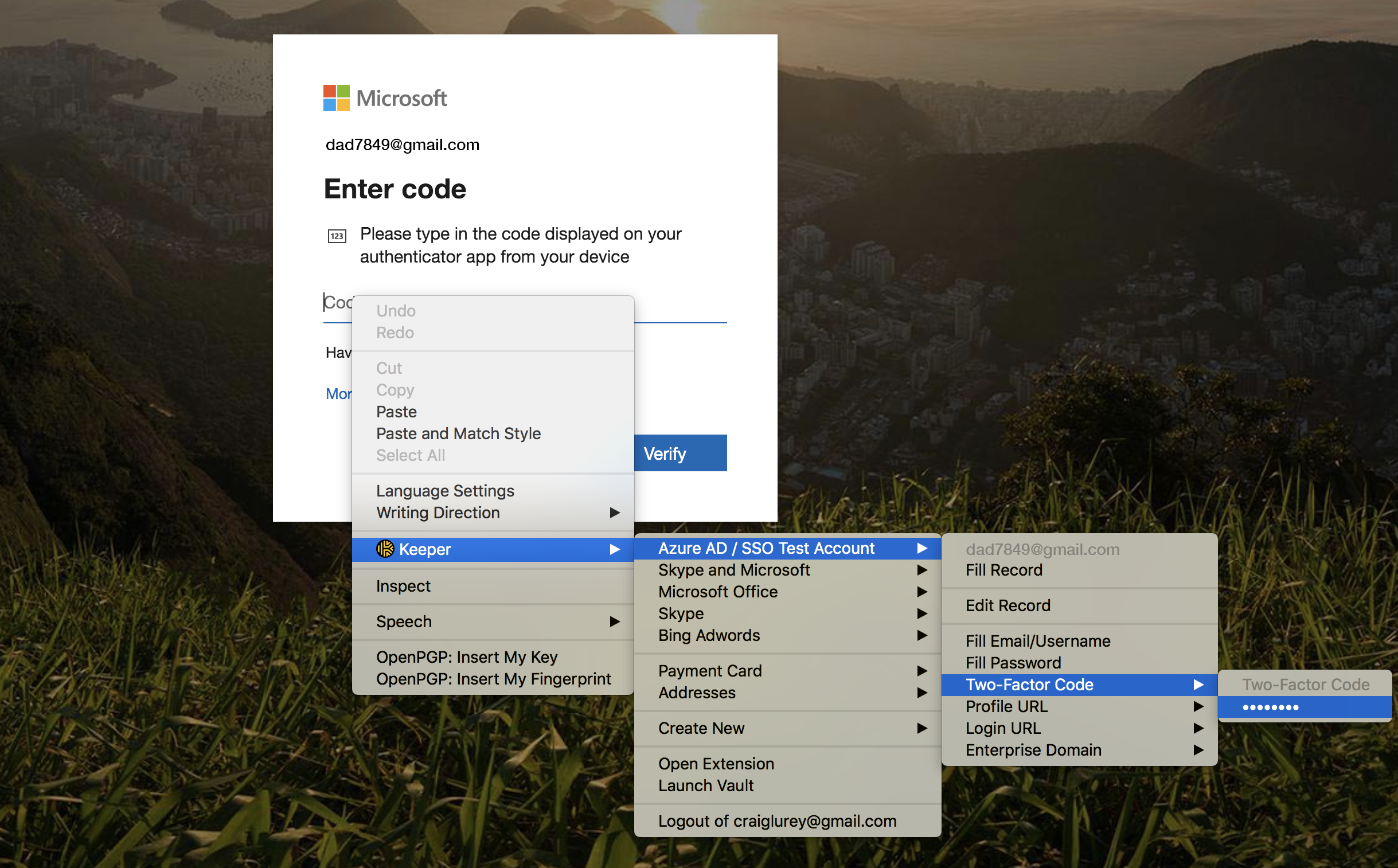
### 2要素認証コードでログインする
Microsoft Onlineにログインする際、Keeperの右クリックメニューを使用してTOTPコードを入力します。
---
# Agent Instructions
This documentation is published with GitBook. GitBook is the documentation platform designed so that both humans and AI agents can read, navigate, and reason over technical content effectively. Learn more at gitbook.com.
## Querying This Documentation
If you need additional information that is not directly available in this page, you can query the documentation by asking a question.
Perform an HTTP GET request on the following URL with the `ask` and `goal` query parameters:
```
GET https://docs.keeper.io/user-guides/jp/tips-and-tricks/using-keeper-totp-with-office-365.md?ask=&goal=
```
`ask` is the immediate question: it should be specific, self-contained, and written in natural language.
`goal` is what the user is ultimately trying to achieve, the reason they need the answer. Sharing it helps GitBook give you a better, more relevant answer. A goal is most helpful when it describes the outcome the user wants rather than restating the question. For example, with `ask=how do I create an API token`, a goal like `automate deployments from our CI pipeline` lets GitBook tailor the answer to that use case.
The response will contain a direct answer to the question and relevant excerpts and sources from the documentation.
Use this mechanism when the answer is not explicitly present in the current page, you need clarification or additional context, or you want to retrieve related documentation sections.