> For the complete documentation index, see [llms.txt](https://docs.keeper.io/llms.txt). Markdown versions of documentation pages are available by appending `.md` to page URLs; this page is available as [Markdown](https://docs.keeper.io/user-guides/jp/tips-and-tricks/using-windows-hello-or-touch-id-with-sso.md).
# シングルサインオンでWindows HelloまたはTouch IDを使用
Windows Helloを使用した、シングルサインオンに紐付けられたボルトへのログイン
KeeperはWindows HelloやTouch IDでMicrosoft AzureなどのSSOプロバイダに紐付けられているボルトへのログインに対応しています。以下はこの機能を設定するための手順となります。
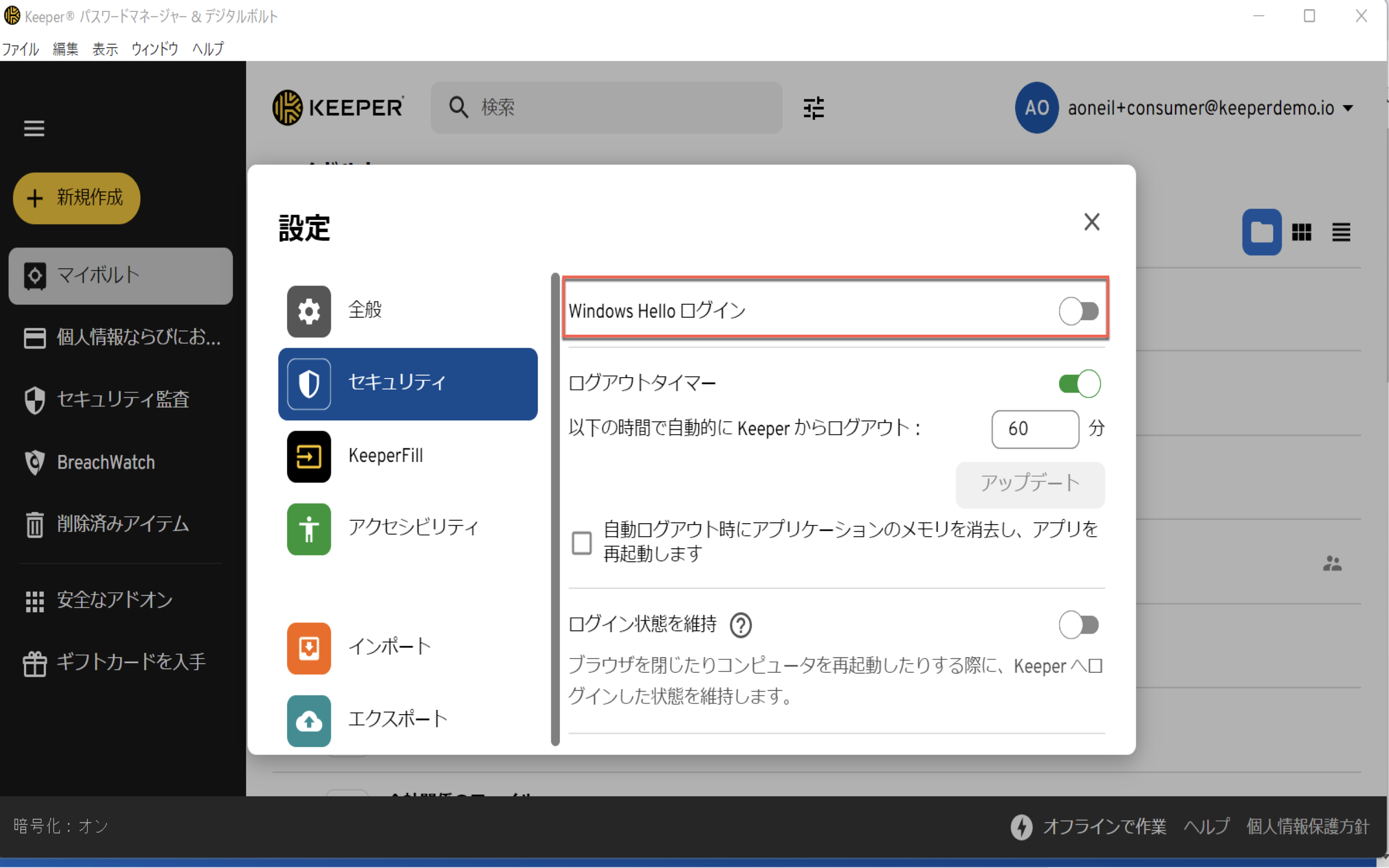
1. 通常どおりSSOを使用してボルトにログインし、**アカウントのドロップダウンメニュー** (右上のメールアドレスが表示されている箇所) **> \[設定]** **> \[セキュリティ]**の順にクリックします。
2. Windows Hello (Macをご使用の場合はTouch ID) を有効にします。以前にこの設定を使用されたことがある場合、デバイス上のマスターパスワード保管場所をリセットするために、一旦OFFにしてからONにする必要があります。
3. それ以降デスクトップアプリにログインする際には、ログイン画面で「Windows Hello」または「Touch ID」のロゴをクリックします。
4. これで、Windows Helloを使用してボルトにログインできるようになり、常にSSOプロバイダを使用してログインする必要がなくなります。
Windows Helloログインを有効化
{% hint style="warning" %}
Windows Helloでログインしようとしたときにエラーが発生した場合、Windows Hello設定をOFFにしてからONにしてください。
{% endhint %}
---
# Agent Instructions
This documentation is published with GitBook. GitBook is the documentation platform designed so that both humans and AI agents can read, navigate, and reason over technical content effectively. Learn more at gitbook.com.
## Querying This Documentation
If you need additional information that is not directly available in this page, you can query the documentation by asking a question.
Perform an HTTP GET request on the following URL with the `ask` and `goal` query parameters:
```
GET https://docs.keeper.io/user-guides/jp/tips-and-tricks/using-windows-hello-or-touch-id-with-sso.md?ask=&goal=
```
`ask` is the immediate question: it should be specific, self-contained, and written in natural language.
`goal` is what the user is ultimately trying to achieve, the reason they need the answer. Sharing it helps GitBook give you a better, more relevant answer. A goal is most helpful when it describes the outcome the user wants rather than restating the question. For example, with `ask=how do I create an API token`, a goal like `automate deployments from our CI pipeline` lets GitBook tailor the answer to that use case.
The response will contain a direct answer to the question and relevant excerpts and sources from the documentation.
Use this mechanism when the answer is not explicitly present in the current page, you need clarification or additional context, or you want to retrieve related documentation sections.