> For the complete documentation index, see [llms.txt](https://docs.keeper.io/llms.txt). Markdown versions of documentation pages are available by appending `.md` to page URLs; this page is available as [Markdown](https://docs.keeper.io/user-guides/nl/import-records-1/import-from-msecure.md).
# Importeren vanuit mSecure
Instructies voor het importeren van uw wachtwoorden vanuit mSecure naar Keeper
## Exporteren
Om vanuit mSecure te importeren, moet u eerst uw records exporteren.
**Mac**
1. Meld u aan bij uw mSecure-account.
2. Klik op **File > Export CSV**.
.png?alt=media)
2. Accepteer de waarschuwing door op **OK** te klikken.
3. Selecteer **Export All Records**.
4. Voer een naam in voor het bestand en klik op **Export**.
**Windows**
1. Meld u aan bij uw mSecure-account.
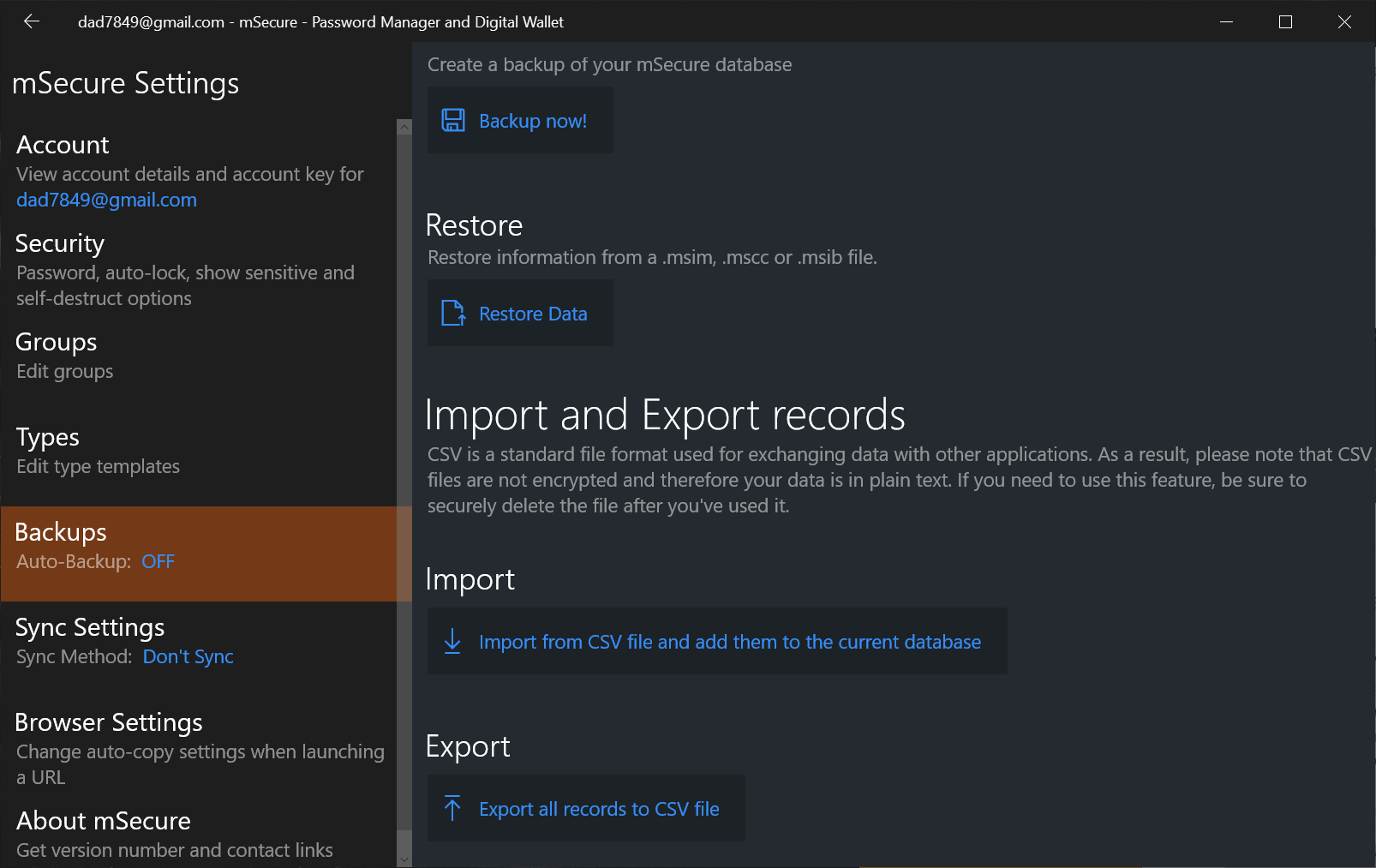
2. Klik op het pictogram **Settings**.
3. Klik op **Backups > Export**.
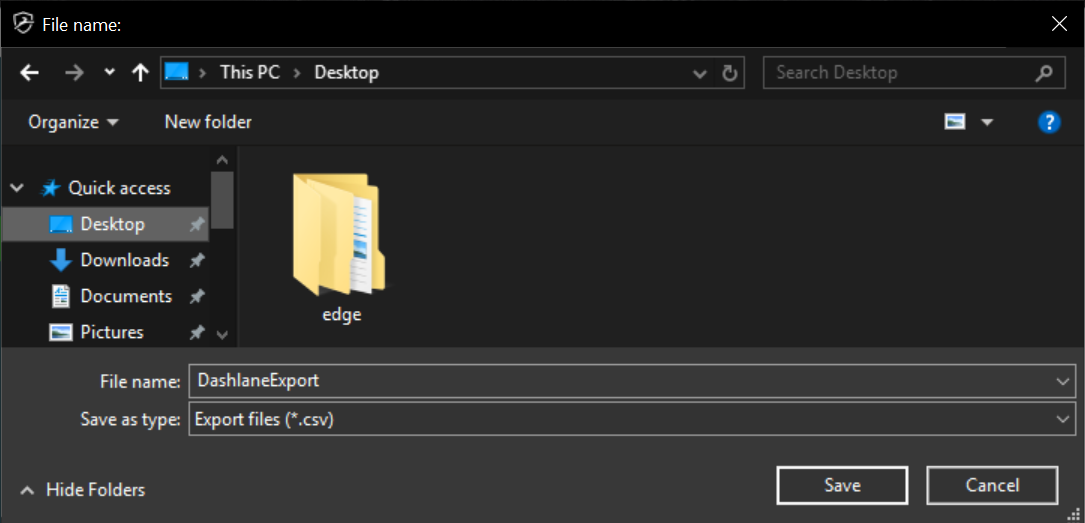
4. Voer een naam in voor het bestand en klik op **Save**.
## Importeren
1. Meld u aan bij de Keeper Webkluis of Desktop-app.
2. Klik in het **vervolgkeuzemenu Account** op **Instellingen**.
3. Klik op **Importeren > Importeren** (naast "Gebruik een andere bron") en selecteer in het vervolgkeuzemenu **mSecure**.
4. Sleep het geëxporteerde bestand naar het venster **Laat hier een bestand vallen** van Keeper of blader naar het bestand op uw computer. Schakel het selectievakje in als uw bestand kolomkoppen bevat; doet u dit niet, dan wordt de eerste rij als gegevens behandeld.
5. Zodra u uw aanmeldingsgegevens via een van bovenstaande methoden hebt geïmporteerd, kunt u in het veldtoewijzingsscherm aanpassen hoe de informatie in uw kluis moet verschijnen. Hier ziet u bovenaan de standaardveldnamen die worden "toegewezen" aan de onderliggende gegevens voor elke Keeper-record.
Om deze toewijzingen aan te passen:
* Klik op een veld om een vervolgkeuzemenu te openen
* Selecteer de juiste veldnaam uit de lijst. Herhaal dit voor elke kolom waar nodig
* Klik op **Volgende** om uw selecties te voltooien.
6. Vervolgens toont een overzichtsscherm een voorbeeld van uw kluis, met de mapstructuur van uw geïmporteerde records. Hier kunt u de mapstructuur aanpassen en op afzonderlijke records klikken om de details te bekijken voordat u de import voltooit. Klik op **Import bevestigen** om het importproces te voltooien.
{% hint style="warning" %}
Verwijder het lokale mSecure-bestand van uw computer.
{% endhint %}
---
# Agent Instructions
This documentation is published with GitBook. GitBook is the documentation platform designed so that both humans and AI agents can read, navigate, and reason over technical content effectively. Learn more at gitbook.com.
## Querying This Documentation
If you need additional information that is not directly available in this page, you can query the documentation by asking a question.
Perform an HTTP GET request on the following URL with the `ask` and `goal` query parameters:
```
GET https://docs.keeper.io/user-guides/nl/import-records-1/import-from-msecure.md?ask=&goal=
```
`ask` is the immediate question: it should be specific, self-contained, and written in natural language.
`goal` is what the user is ultimately trying to achieve, the reason they need the answer. Sharing it helps GitBook give you a better, more relevant answer. A goal is most helpful when it describes the outcome the user wants rather than restating the question. For example, with `ask=how do I create an API token`, a goal like `automate deployments from our CI pipeline` lets GitBook tailor the answer to that use case.
The response will contain a direct answer to the question and relevant excerpts and sources from the documentation.
Use this mechanism when the answer is not explicitly present in the current page, you need clarification or additional context, or you want to retrieve related documentation sections.