> For the complete documentation index, see [llms.txt](https://docs.keeper.io/llms.txt). Markdown versions of documentation pages are available by appending `.md` to page URLs; this page is available as [Markdown](https://docs.keeper.io/user-guides/nl/tips-and-tricks/login-to-keeper-on-macos-with-touch-id.md).
# Aanmelden bij Keeper op macOS met Touch ID
Hoe u zich aanmeldt bij Keeper met Touch ID op uw Mac.
### macOS-aanmelding met Touch ID
Keeper is compatibel met Touch ID op macOS, een op biometrie gebaseerde technologie waarmee gebruikers zich kunnen authenticeren en aanmelden bij hun apparaat met een vingerafdruk. Als Touch ID is geconfigureerd op het apparaat van een gebruiker en is ingeschakeld in Keeper, hoeft de gebruiker geen SSO te gebruiken of een hoofdwachtwoord in te voeren op het Keeper-aanmeldscherm, waardoor het aanmelden sneller verloopt.
Om Touch ID in te schakelen, klikt u op het **vervolgkeuzemenu Account** **>** **Instellingen > Beveiliging** en zet u **Touch ID** aan.
Touch ID inschakelen
#### Touch ID instellen
Is Touch ID nog niet geconfigureerd op uw Mac, dan moet u de functie eerst inschakelen via de apparaatinstellingen. Sluit na het configureren van Touch ID het instellingenvenster en keer terug naar uw kluis om verder te gaan met de bovenstaande stappen.
#### Aanmelden met Touch ID
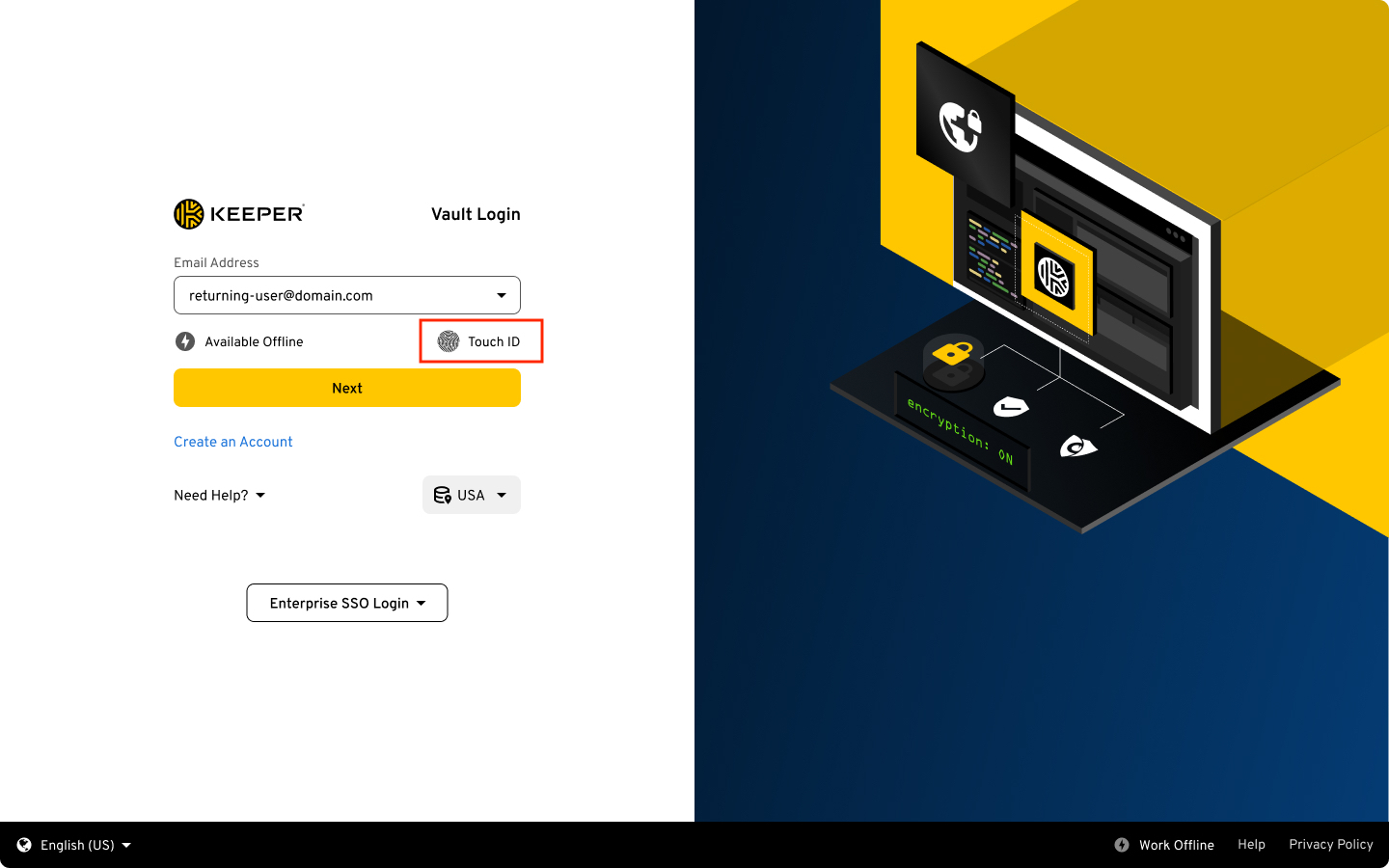
De volgende keer dat u zich aanmeldt bij Keeper, tikt u op het Touch ID-icoon op het aanmeldscherm. Zodra u bent geverifieerd, wordt uw kluis ontsleuteld en wordt u automatisch aangemeld bij Keeper.
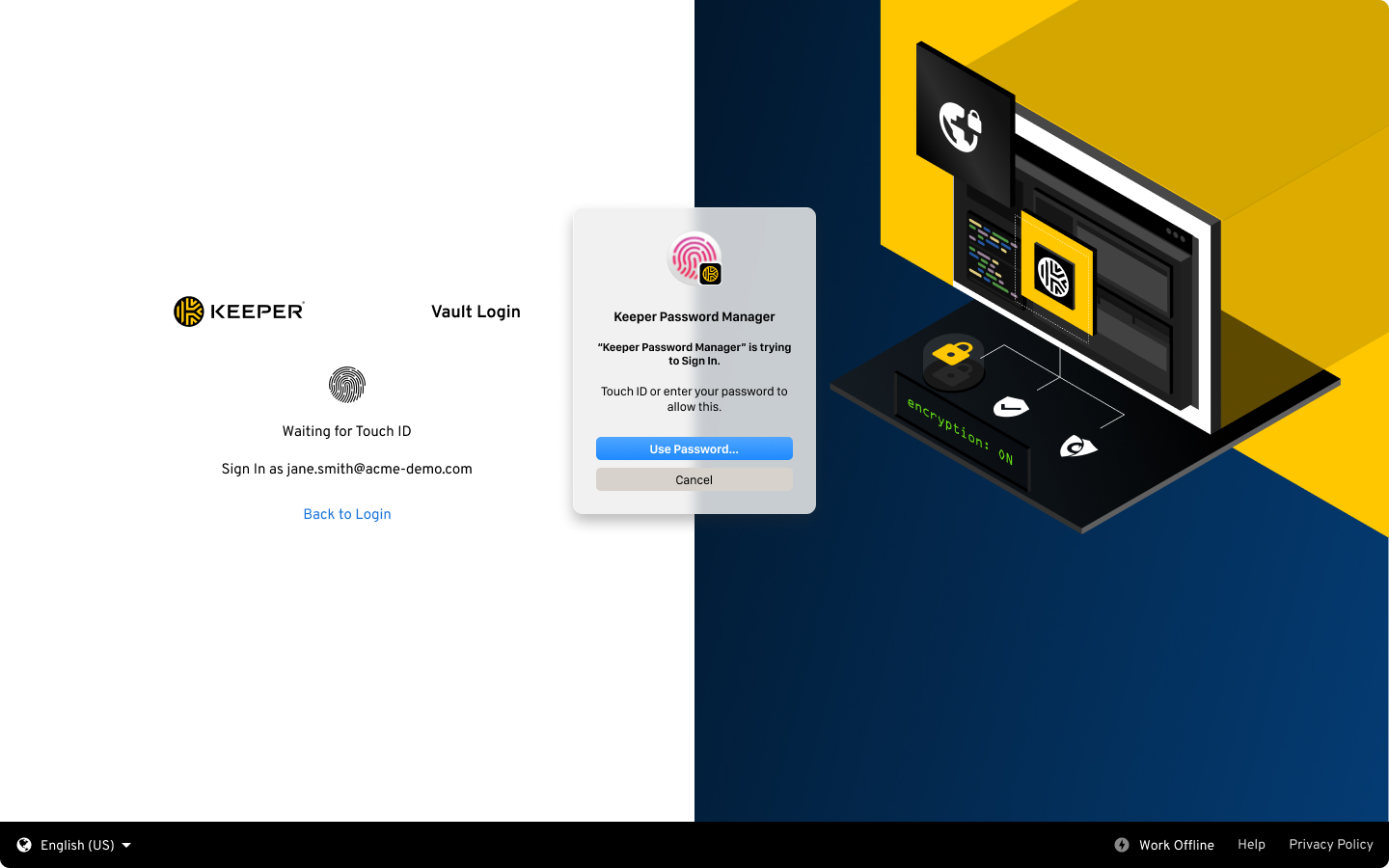
Als u op **Annuleren** klikt, keert u terug naar het aanmeldscherm om u in plaats daarvan aan te melden met uw hoofdwachtwoord of SSO.
Touch ID-aanmelding
Touch ID-melding
---
# Agent Instructions
This documentation is published with GitBook. GitBook is the documentation platform designed so that both humans and AI agents can read, navigate, and reason over technical content effectively. Learn more at gitbook.com.
## Querying This Documentation
If you need additional information that is not directly available in this page, you can query the documentation by asking a question.
Perform an HTTP GET request on the following URL with the `ask` and `goal` query parameters:
```
GET https://docs.keeper.io/user-guides/nl/tips-and-tricks/login-to-keeper-on-macos-with-touch-id.md?ask=&goal=
```
`ask` is the immediate question: it should be specific, self-contained, and written in natural language.
`goal` is what the user is ultimately trying to achieve, the reason they need the answer. Sharing it helps GitBook give you a better, more relevant answer. A goal is most helpful when it describes the outcome the user wants rather than restating the question. For example, with `ask=how do I create an API token`, a goal like `automate deployments from our CI pipeline` lets GitBook tailor the answer to that use case.
The response will contain a direct answer to the question and relevant excerpts and sources from the documentation.
Use this mechanism when the answer is not explicitly present in the current page, you need clarification or additional context, or you want to retrieve related documentation sections.
.png?alt=media)