Automation Commands

Streamline administrative workflows by automating complex, multi-step processes on the Keeper platform

Overview

Automation Commands provide a unified way to automate credential provisioning for users in the organization. Using a single Commander action, the admin can create PAM Users, apply rotation settings, perform immediate password updates through the Keeper Gateway, and deliver credentials via one-time share links. The result is a repeatable, error-resistant workflow that accelerates employee onboarding and ensures security best practices are followed every time.

Commands

Command
Alias
Purpose

cp

Automate PAM User credential provisioning automated rotation, one-time share generation and email delivery

credential-provision

Automates the end-to-end process of creating PAM User credentials with password rotation, folder organization, one-time share creation and secure email delivery.

Use Case

  • Onboarding new employees with their identity provider credentials

  • Automating the process of end-user password resets

  • Rotating and delivering on-demand credentials for any KeeperPAM resource

Details

The credential-provision command orchestrates multiple Commander operations in a single workflow. It accepts a YAML configuration file as the request parameters, and it processes the workflow in a single action.

  1. Parse Configuration - Validates the provided YAML configuration file

  2. Duplicate Detection - Checks for existing PAM Users to prevent conflicts

  3. Password Generation - Creates secure passwords meeting complexity requirements

  4. PAM User Creation - Creates PAM User record in specified folder

  5. Rotation Configuration - Links to PAM Configuration and sets rotation schedule

  6. Immediate Rotation - Performs on-demand rotation of the password in the target directory via the Keeper Gateway

  7. Share URL Generation - Creates a one-time expiring share link to the recipient

  8. Email Delivery - Sends welcome email with credentials to the recipient

This automation eliminates manual steps, ensures proper security configuration, and provides a consistent provisioning experience.

Parameters

  • -config </path/to/file> - Path to YAML configuration file containing provisioning settings

  • -config-b64 <base64 encoded file> - YAML configuration encoded in base64 format

Optional Parameters

  • --dry-run - Validate configuration without creating resources

  • --format=<json\|text> - Output format (default: text)

Prerequisites

In order to utilize this automation command, the following needs to be set up:

YAML Configuration Structure

In the example YAML configuration below, Sarah Jones is a new employee that is being onboarded to Company.com. The identity provider / IGA / HR system (such as Workday, Aquera, Sailpoint, ConductorOne, etc) triggers a request to Keeper that performs the following:

  • Identifies the user in the target directory

  • Rotates the password in the directory, according to the desired complexity rules

  • Saves the password as a PAM User record in the Commander user's vault

  • Configures automated password rotation of the record for once per week

  • Delivers the credential to the new employee's personal email address through a one-time share link

  • One-time share link expires in 7 days

user: # Employee information
  first_name: Sarah
  last_name: Admin
  personal_email: [email protected]
  department: Marketing
account:  # Target account details
  username: sarah.jones
  distinguished_name: "CN=sarah.jones,OU=Marketing,OU=Corporate,DC=company,DC=com"
  pam_config_uid: boj-GDQmTV-VGgBC3VRsow
vault: # Vault storage configuration (optional)
  folder: "PAM Users/Marketing"
pam: # Password rotation settings
  rotation:
    schedule: "0 0 0 * * ?"        # Every Sunday at midnight
    password_complexity: "32,5,5,5,5"
email: # Email delivery settings
  config_name: "Company SMTP Server"
  send_to: "[email protected]"
  subject: "Welcome to Company.com - Your Credentials"
  share_url_expiry: "7d"

User Section

The "user" section identifies the end-user identity in the target directory.

Field
Type
Required
Description

first_name

string

Yes

New User's first name

last_name

string

Yes

Employee's last name

personal_email

string

Yes

Personal email for credential delivery

employee_id

string

No

Employee identifier

department

string

No

Department (used for folder organization)

Account Section

The "account" section identifies the PAM Configuration and user ID in the target directory.

Field
Type
Required
Description

username

string

Yes

Username for target system

pam_config_uid

string

Yes

UID of PAM Configuration record

distinguished_name

string

No*

AD Distinguished Name (see system-specific requirements)

*Required for Active Directory in multi-OU environments (recommended for all AD deployments).

Vault Section

The "vault" section controls where the PAM User record is stored in the vault.

Field
Type
Required
Description
Default

folder

string

No

Subfolder relative to gateway application folder

PAM Users/{department}

To find the Application Folder, see the Vault > Secrets Manager > PAM Configurations > Application Folder setting.

Example: If the gateway folder is My Infrastructure and the vault.folder parameter is Users/Service Accounts, the final path becomes My Infrastructure/Users/Service Accounts.

{gateway_application_folder}/{vault.folder}

PAM Section

The "pam" section controls the password rotation settings.

Field
Type
Required
Description

rotation.schedule

string

Yes

6-field CRON expression

rotation.password_complexity

string

Yes

Password complexity rules

Rotation Schedule (6-field CRON) Format: second minute hour day month day-of-week

"0 0 0 * * 0"      # Every Sunday at midnight
"0 0 2 * * *"      # Every day at 2 AM
"0 0 3 * * 1,5"    # Monday and Friday at 3 AM
"0 0 0 1 * *"      # First of month at midnight
"0 30 1 * * 1-5"   # Weekdays at 1:30 AM

Password Complexity Format: "length,uppercase,lowercase,digits,special"

"32,5,5,5,5"       # 32 chars: 5 upper, 5 lower, 5 digits, 5 special
"16,3,3,3,3"       # 16 chars: 3 upper, 3 lower, 3 digits, 3 special
"64,10,10,10,10"   # 64 chars: 10 upper, 10 lower, 10 digits, 10 special

Email Section

The "email" section defines the delivery settings and email template containing the credentials.

Field
Type
Required
Description
Default

config_name

string

Yes

Email configuration name from Admin Console

-

send_to

string

Yes

Recipient email

subject

string

No

Email subject line

"Your New Credentials"

share_url_expiry

string

No

Share URL expiration time

"7d"

Share URL Expiration Time Format: y (year), mo (month), d (day), h (hour), mi (minute)

"7d"    # 7 days
"24h"   # 24 hours
"60mi"  # 60 minutes (use 'mi' NOT 'm')
"1mo"   # 1 month
"1y"    # 1 year

Executing the Automation

The process of executing the Keeper automation is as follows:

  1. Create a YAML file that defines the automation parameters

  2. Call the Commander command: credential-provision --config="/path/to/test.yaml"

  3. Alternatively, use the Commander Service Mode REST API to send the request via HTTPS with: credential-provision --output json --config-b64 <base64 encoded file>

Example Configurations

Active Directory User

user:
  first_name: John
  last_name: Doe
  personal_email: [email protected]
  department: IT
account:
  username: john.doe-admin
  pam_config_uid: "boj-GDQmTV-VGgBC3VRsow" # YOUR-PAM-CONFIG-UID-HERE
  # Distinguished Name (OPTIONAL but RECOMMENDED for multi-OU environments)
  distinguished_name: "CN=Test User,CN=Users,DC=samdoe,DC=local" 
pam:
  rotation:
    schedule: "0 0 3 * * ?"
    password_complexity: "32,5,5,5,5"
email:
  config_name: "Company-Mail-Server" # YOUR-EMAIL-CONFIG-NAME
  send_to: "[email protected]"
vault:
  folder: "PAM Users/IT Admins"

Execution

My Vault> credential-provision --config="test.yaml"
Loading configuration from: test.yaml
✅ Configuration validated
Selected 1 PAM record(s) for rotation
✅ PAM User created and linked
✅ Password rotation submitted
✅ Share URL generated for PAM User
[EMAIL] Sending email to [email protected] via smtp
[EMAIL] SMTP email sent to [email protected] via smtp.gmail.com
✅ Email with one-time share sent
My Vault> 

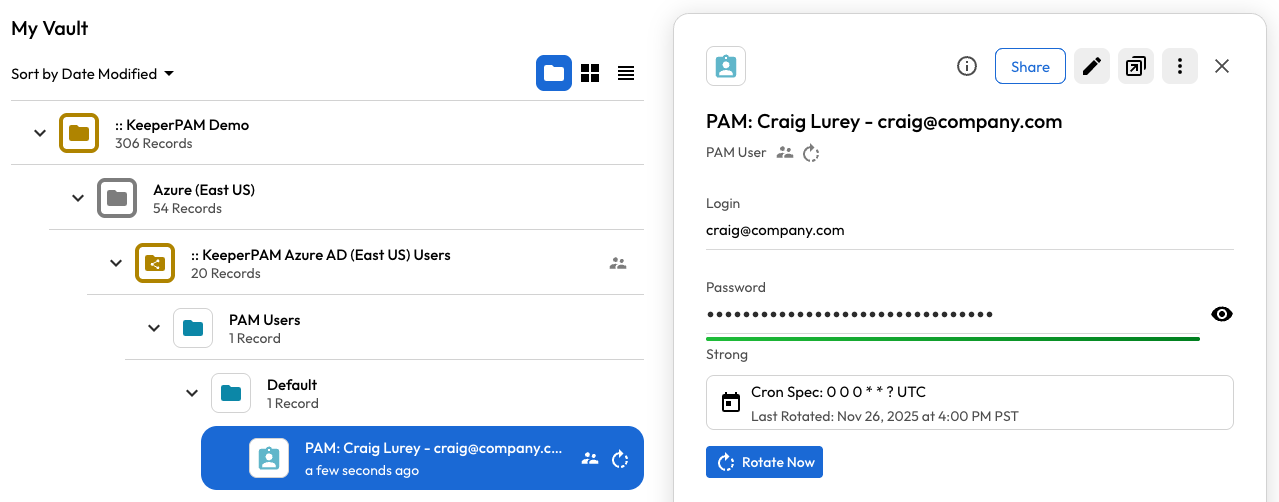
Microsoft Entra ID User

user:
  first_name: Craig
  last_name: Lurey
  personal_email: [email protected]
account:
  username: [email protected]
  pam_config_uid: hGn4IdC_18KWCo7tPCKoqQ
pam:
  rotation:
    schedule: "0 0 0 * * ?"
    password_complexity: "32,5,5,5,5"
email:
  config_name: "SMTP-Gmail"
  send_to: "[email protected]"
  subject: "Your Microsoft Login"
  share_url_expiry: "7d"
Execution

My Vault> cp --output json --config test.yaml
Selected 1 PAM record(s) for rotation
[EMAIL] Sending email to [email protected] via smtp
[EMAIL] SMTP email sent to [email protected] via smtp.gmail.com
{
  "success": true,
  "pam_user_uid": "g28IrIrHEfL1xnaEgeww7g",
  "share_url": "https://keepersecurity.com/vault/share/#XXXXXXXX",
  "username": "[email protected]",
  "employee_name": "Craig Lurey",
  "rotation_status": "synced",
  "email_status": "sent",
  "message": "Credential provisioning complete"
}

As a result, the PAM User record is created in the vault, rotated in the target directory and sent to the recipient as a one-time share that expires in 7 days.

Email Template

The recipient will receive an email containing an encrypted one-time share link.

When the user clicks "View Credentials", they are able to decrypt and view the credentials.

System-Specific Requirements

Active Directory - Distinguished Name is REQUIRED for multi-OU environments. Without it, rotation may fail if multiple users have the same username in different OUs.

Azure AD - Username MUST be in email format: [email protected] OR DOMAIN\user

AWS IAM - Just use a plain username

Last updated

Was this helpful?