> For the complete documentation index, see [llms.txt](https://docs.keeper.io/llms.txt). Markdown versions of documentation pages are available by appending `.md` to page URLs; this page is available as [Markdown](https://docs.keeper.io/keeperpam/privileged-access-manager/getting-started/pam-resources/saas-configuration.md).
# SaaS Configuration
Automatically rotates credentials for supported cloud-based services.
## Overview
**SaaS Configuration** enables users to automate password rotations for cloud-based services. By rotating passwords and secrets on a defined schedule (or on-demand), you can strengthen security, reduce risk from credential exposure, and support compliance requirements.
With SaaS Configurations, you can:
* Automatically rotate passwords/secrets for built-in services
* Build your own SaaS rotation plugins
* Use one of the community plugins (catalog)
* Define rotation frequency and criteria
* Trigger rotation manually when needed
## Supported Services
This system supports password rotation for various SaaS platforms, including:
* AWS Access Key (Built-in)
* AWS Cognito (Catalog)
* Azure Client Secret (Built-in)
* Cisco APIC (Catalog)
* Cisco IOS XE (Built-in)
* Cisco Meraki (Built-in)
* Elasticsearch API Key (Catalog)
* Elasticsearch Service Account Token (Catalog)
* Elasticsearch User (Catalog)
* JFrog Access Token (Catalog)
* JFrog User Password Rotation (Catalog)
* Okta (Built-in)
* OpenSearch User (Catalog)
* Oracle Identity Domain User (Catalog)
* REST (Built-in)
* ServiceNow User (Catalog)
* Snowflake (Built-in)
* Splunk Token Rotation (Catalog)
* Splunk User Password Rotation (Catalog)
Each service has specific setup requirements (such as API permissions, tokens, or secret formats). Ensure your service account is configured correctly before enabling rotation.
## Requirements
To use SaaS Configuration Password Rotation, the following requirements must be met:
#### Gateway Requirements
* **PAM Gateway version 1.8 or newer**
* The **Gateway must be online** to select it during setup
* **Vault version 17.6** or newer
#### Folder Requirements
* The **SaaS Configuration record must be stored in the Shared Folder(s)** assigned to the selected Gateway (This ensures the Gateway can access and rotate the credential.)
## How It Works
SaaS Configuration uses your selected **PAM Gateway** to securely connect to the target service and update the password/secret. When rotation completes, Keeper updates the stored credential to keep your Vault up to date.
Rotation can be triggered by:
* **Time-based rotation** (scheduled)
* **Manual rotation** (run on demand)
## Create & Configure SaaS Configuration
This guide walks you through creating a SaaS Configuration record and applying it to a **PAM User** for automated password rotation.
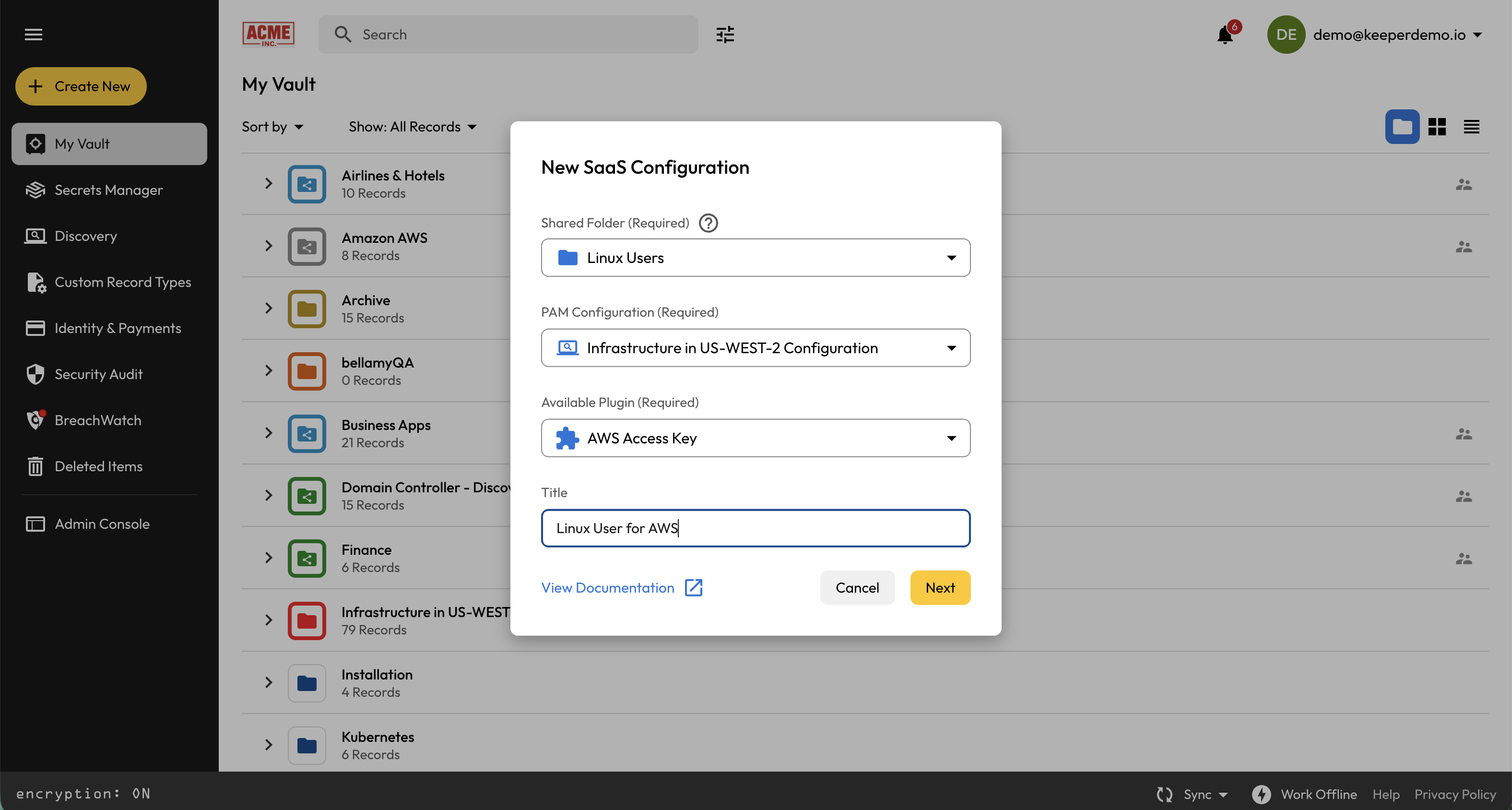
#### Step 1: Create a SaaS Configuration Record
From the Keeper Vault, click **Create New** and Select **SaaS Configuration**.
* **Choose where to save the Record -** The SaaS rotation record must be saved in a Shared Folder associated with the selected PAM Configuration.
* **Select a PAM Configuration -** The Gateways associated with that PAM Configuration must be **online** before the user can select a plugin for setup.
* **Select a Plugin -** The available plugins shown are based on the Gateway you selected. If you don’t see the plugin you need, you may need to *create or enable the plugin first*.
Click **Next**.
This will open the record in edit mode, allowing you to add the required information to perform the associated actions. Once the record has been updated, click **Save**.
#### Step 2: Assign the SaaS Configuration to a PAM User
Open the target **PAM User** **record** and select the **Edit icon**.
Navigate to "Rotation Profile" and select the **SaaS Account** where you will then select your **SaaS Configuration**.
Within the "Rotation Settings", you can schedule password rotations. Once assigned, Keeper will use that SaaS Configuration whenever the user’s password rotation is executed. Click **Save** to complete the configuration.
***
#### **Configuration Using Keeper Commander**
If you prefer using a command-line interface, refer to the [**Keeper Commander – SaaS Rotations**](/keeperpam/privileged-access-manager/password-rotation/rotation-use-cases/saas-plugins.md) documentation.
---
# Agent Instructions
This documentation is published with GitBook. GitBook is the documentation platform designed so that both humans and AI agents can read, navigate, and reason over technical content effectively. Learn more at gitbook.com.
## Querying This Documentation
If you need additional information that is not directly available in this page, you can query the documentation by asking a question.
Perform an HTTP GET request on the following URL with the `ask` and `goal` query parameters:
```
GET https://docs.keeper.io/keeperpam/privileged-access-manager/getting-started/pam-resources/saas-configuration.md?ask=&goal=
```
`ask` is the immediate question: it should be specific, self-contained, and written in natural language.
`goal` is what the user is ultimately trying to achieve, the reason they need the answer. Sharing it helps GitBook give you a better, more relevant answer. A goal is most helpful when it describes the outcome the user wants rather than restating the question. For example, with `ask=how do I create an API token`, a goal like `automate deployments from our CI pipeline` lets GitBook tailor the answer to that use case.
The response will contain a direct answer to the question and relevant excerpts and sources from the documentation.
Use this mechanism when the answer is not explicitly present in the current page, you need clarification or additional context, or you want to retrieve related documentation sections.
.png?alt=media&token=c939fde1-399b-4857-85e7-b9e3a8173912)