# KCM License
Starting with Keeper Connection Manager version 2.19, customers are required to obtain a license key from Keeper in order to continue the use of the application.
{% hint style="warning" %}
Before installing KCM 2.19 or newer versions, please ensure you have a valid license key. **Without a valid license key, users and administrators will be unable to use KCM after the update is applied**
{% endhint %}
### KCM License Requirements
Prior to obtaining a KCM license key, the following are required:
* [KeeperPAM License](https://www.keepersecurity.com/privileged-access-management/) or
* [Keeper Business](https://www.keepersecurity.com/business.html) or [Keeper Enterprise](https://www.keepersecurity.com/enterprise.html) license with the KCM On-Prem Add-on
### Obtaining License Key
To obtain the KCM License Key:
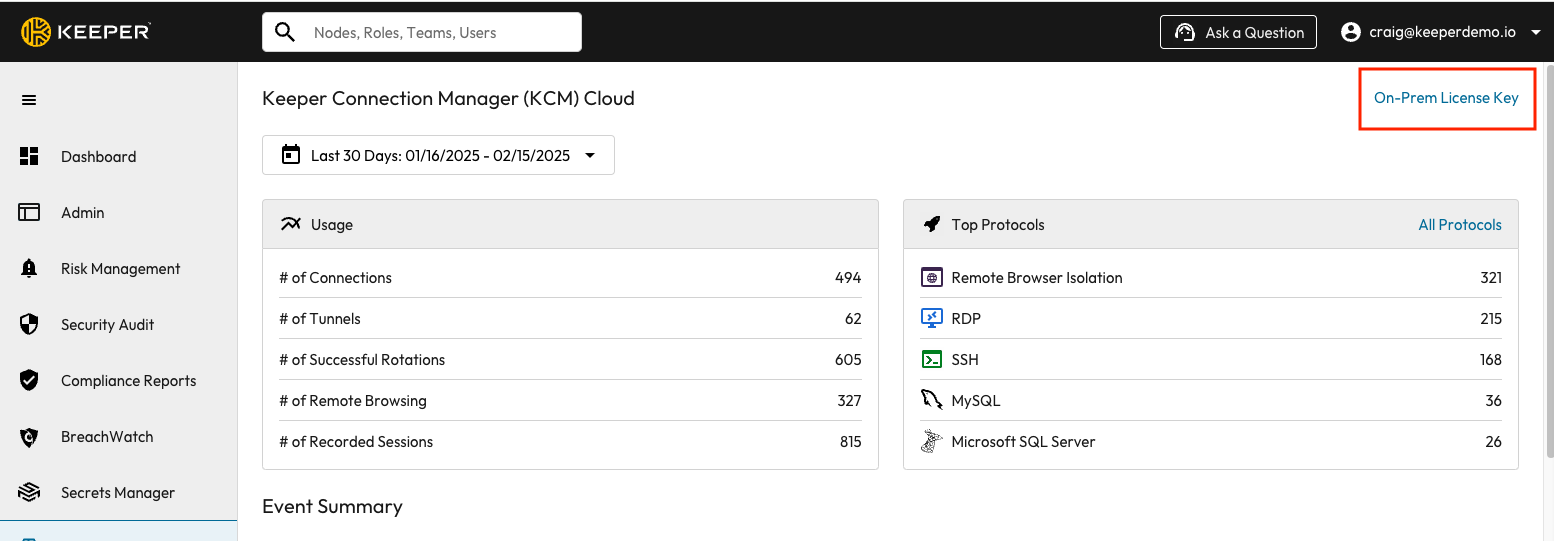
1. Log on to the Keeper Admin Console
2. Navigate to the Connection Manager Tab
3. Click on "On-Prem License Key"
On-Prem License Key
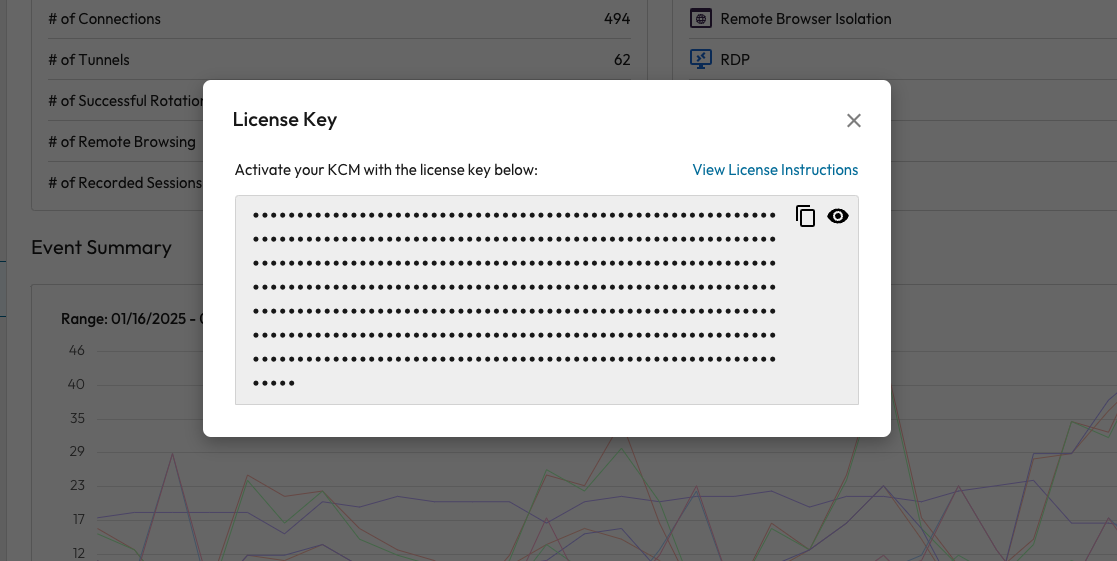
A new license key will be automatically generated and displayed on your screen:
License Key Download
### Installing License Key
To install your license key, follow the steps below:
#### New Customers
During the installation process, you will be prompted to input the license key.
#### Existing Customers
If using the [Auto Docker Install](/keeper-connection-manager/installation/auto-docker-install.md) or [Docker Compose](/keeper-connection-manager/installation/docker-compose-install.md) Install method, simply update the `keeper/guacamole` container definition with the license as the value of the **`KCM_LICENSE`** environment variable.
How to add your KCM license key to your docker-compose.yml
Example:
```
guacamole:
image: keeper/guacamole:2
restart: unless-stopped
environment:
ACCEPT_EULA: "Y"
.
.
.
KCM_LICENSE: "XXXXXXXXXXXXXXXXXXXXXXXXXX"
volumes:
- "common-storage:/var/lib/guacamole:rw"
```
* (Optional) If the license will be present within a file in your container, you may alternatively use the **`KCM_LICENSE_FILE`** environment variable to point to that file.
* (Optional) If using the RPM packages, you must provide the license as the sole contents of `/etc/guacamole/kcm.license`, which must be readable by the guacamole group.
After adding the license key, restarting the container is necessary. If using the Auto Docker Install method, simply run:
```
sudo ./kcm-setup.run apply
```
### Troubleshooting
If you need assistance, you can contact Keeper Support at:
Upon request, Keeper staff will generate your KCM on-prem license key. Once generated, the key can be accessed directly from the Keeper Admin Console.
---
# Agent Instructions: Querying This Documentation
If you need additional information that is not directly available in this page, you can query the documentation dynamically by asking a question.
Perform an HTTP GET request on the current page URL with the `ask` query parameter:
```
GET https://docs.keeper.io/keeper-connection-manager/installation/license-key.md?ask=
```
The question should be specific, self-contained, and written in natural language.
The response will contain a direct answer to the question and relevant excerpts and sources from the documentation.
Use this mechanism when the answer is not explicitly present in the current page, you need clarification or additional context, or you want to retrieve related documentation sections.