> For the complete documentation index, see [llms.txt](https://docs.keeper.io/llms.txt). Markdown versions of documentation pages are available by appending `.md` to page URLs; this page is available as [Markdown](https://docs.keeper.io/keeperpam/secrets-manager/integrations/raycast-extension.md).
# Raycast Extension
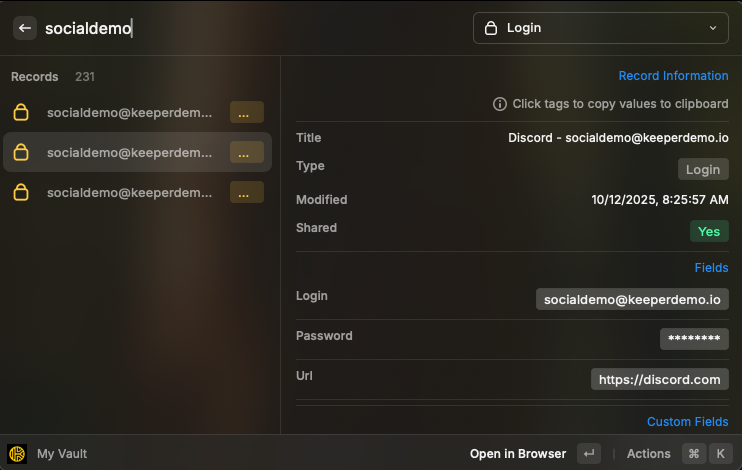
Raycast extension that provides fast and seamless access to your Keeper Security vault
### About
A comprehensive [Raycast](https://www.raycast.com/) extension that provides seamless access to your Keeper Security vault on **macOS** and **Windows**. Manage records, generate secure credentials, and access your vault records without leaving your workflow.
### Features
* **Record Management**: Browse your Keeper vault with a clean, searchable, filterable interface and perform different actions
* **Password Generation**: Generate secure passwords with custom options or instantly with defaults, automatically copied to clipboard
* **Passphrase Generation**: Generate 24-word passphrase, automatically copied to clipboard
***
### Prerequisites
* **Keeper Commander CLI**: Must be installed and authenticated on your system
* **Keeper Security Account**: Active subscription with vault access (Consumer, B2B, MSP)
***
### Quick Setup
#### Step 1. Install the Keeper Security Extension
You can install the Keeper Security extension directly from the Raycast website:
*
Or, open **Raycast Settings** > **Extensions** > **Click "+" button** > **Install from Store** and search for **"Keeper Security".**
#### **Step 2. Install the Keeper Commander CLI**
Follow the [Keeper Commander Installation Guide](/keeperpam/commander-cli/commander-installation-setup.md) to download and install the binary for your operating system.
#### **Step 3. Authenticate with Keeper Commander CLI**
* Open your Terminal app.
* Run the following command: `keeper shell`
* If you're not already logged in, type `login youremail@company.com` and you'll be asked to enter your Keeper credentials.
* After login, we recommend activating "persistent login" mode:
```
this-device register
this-device persistent-login on
this-device timeout 43200
```
There are several other authentication methods, including biometric login. See the [Logging In](/keeperpam/commander-cli/commander-installation-setup/logging-in.md) documentation for more info.
#### Step 4. Start Keeper Commander Service Mode
In order to preserve zero knowledge and provide all of the full Raycast integration capabilities, you need to run the Keeper Commander service on your local machine, or any server that can be accessed over an HTTPS connection. To keep things simple, a quick command for Keeper Commander that is compatible with the Raycast integration looks like this:
{% code overflow="wrap" %}
```
service-create -p 9007 -q n -c "generate,get,list,this-device,sync-down,share,totp,server"
```
{% endcode %}
This will produce some output like below:
```
Generated API key: XXXXXXXXXXXXXX
...
Commander Service starting on http://localhost:9007/api/v1/
...
...
```
After you type this, you'll need to save two pieces of information:
* **API URL**: This looks like `http://localhost:9007`
* **API Key**: This looks like `abcdefghi123456==`
{% hint style="info" %}
Keep the Commander CLI running in order to stay connected
{% endhint %}
#### Step 5. Authenticate the Extension
1. Open **Raycast** using your configured hotkey.
2. Search for **"Keeper Security"** and run any `keeper security` command from the extension.
If you're not authenticated, the extension will prompt you to enter the **API URL** and **API Key**.
Note: remove `/api/v1` from the API URL, so it looks like below.
Setup is now complete.
***
### Usage
Open Raycast using your configured hotkey to run below commands:
#### `My Vault` Command
* **Purpose**: View and interact with all your vault records.
* **Available Actions**:
* **Show Details** – Displays detailed information about the record
* **Open in Browser -** Opens the record directly in the Web Keeper Vault via your browser
* **Copy Login** – Copies the username/email to clipboard (if available in the record)
* **Copy Password** – Copies the password to clipboard (if available)
* **One-Time Share Record** – Generates a 7-day shareable link for the record
* **Copy Two Factor Code** – Copies the TOTP code (if available)
* **Sync Records** – Fetches the latest vault records from the cloud
#### `Generate Password` Command
* **Purpose**: Generate a random password with custom options and automatically copy it to the clipboard.
#### `Generate Password (Quick)` Command
* **Purpose**: Generate a random password using default options and automatically copy it to the clipboard.
#### `Generate Passphrase` Command
* **Purpose**: Generate a random 24-word passphrase and automatically copy it to the clipboard.
***
#### Restarting the Service Mode
Commander Service Mode needs to be running in order for the Raycast extension to communicate with Keeper. If the Terminal app closes, you can easily start Commander Service Mode using this one-line command from your terminal:
```
keeper service-start
```
Assuming that you followed the above [Quick Setup](#configuring-discovery-credentials) instructions, this should immediately login to Keeper and start up the service inside your Terminal app.
***
### Learn More
This document has covered the basic use cases to integrate Keeper Commander with Raycast. Many more advanced options exist. To learn more, see the below helpful documents:
* [Logging In](/keeperpam/commander-cli/commander-installation-setup/logging-in.md) to Commander
* [Service Mode REST API](/keeperpam/commander-cli/service-mode-rest-api.md)
***
### Support
For support, bugs or feature requests, please email ****.
---
# Agent Instructions
This documentation is published with GitBook. GitBook is the documentation platform designed so that both humans and AI agents can read, navigate, and reason over technical content effectively. Learn more at gitbook.com.
## Querying This Documentation
If you need additional information that is not directly available in this page, you can query the documentation by asking a question.
Perform an HTTP GET request on the following URL with the `ask` and `goal` query parameters:
```
GET https://docs.keeper.io/keeperpam/secrets-manager/integrations/raycast-extension.md?ask=&goal=
```
`ask` is the immediate question: it should be specific, self-contained, and written in natural language.
`goal` is what the user is ultimately trying to achieve, the reason they need the answer. Sharing it helps GitBook give you a better, more relevant answer. A goal is most helpful when it describes the outcome the user wants rather than restating the question. For example, with `ask=how do I create an API token`, a goal like `automate deployments from our CI pipeline` lets GitBook tailor the answer to that use case.
The response will contain a direct answer to the question and relevant excerpts and sources from the documentation.
Use this mechanism when the answer is not explicitly present in the current page, you need clarification or additional context, or you want to retrieve related documentation sections.