# XSOAR
## About
Use credentials from your Keeper Vault in XSOAR workflows. Integrate with Keeper Secrets Manager to securely access all the platforms and services you connect to with XSOAR.
## Setup
#### Activate Keeper Secrets Manager
Follow the[ Quick Start Guide](/keeperpam/secrets-manager/quick-start-guide.md#enable-secrets-manager) to enable Keeper Secrets Manager on your account.
#### Create A Keeper Secrets Manager Configuration
Follow the steps in the [documentation page](/keeperpam/secrets-manager/about/secrets-manager-configuration.md) to create a Secrets Manager configuration.
### Configure Keeper Secrets Manager on Cortex XSOAR
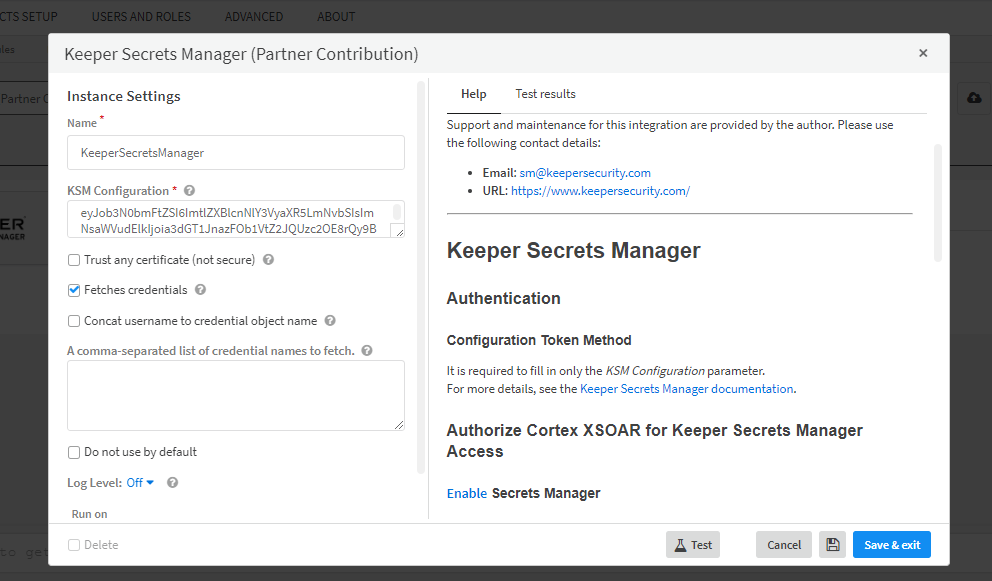
In XSOAR, follow these steps to configure the Keeper Secrets Manager integration.
1. Navigate to **Settings** > **Integrations** > **Servers & Services**.
2. Search for "Keeper Secrets Manager"
3. Click **Add instance** to create and configure a new integration instance.
Configure the instance to use the Keeper Secrets Manager integration
The following options are available to configure your XSOAR integration:
| Parameter | Description |
| ---------------------------------------------------- | ---------------------------------------------------------------------------------------------------------------------------------------------------------------------------------------------------- |
| KSM Configuration (Required) |
The KSM config to use for connection. Paste in the configuration generated by the steps above.
|
| Trust any certificate |
When 'trust any certificate' is selected, the integration ignores TLS/SSL certificate validation errors. Use to test connection issues or connect to a server without a valid certificate.
|
| Fetches credentials | If selected, credentials are fetched from login records. |
| Concat username to credential object name | when selected, the username and credential name will be combined. Use to make the credential object unique in case of duplicate names in different folders/secrets. |
| A comma-separated list of credential names to fetch. | Partial names are not supported. If left empty, all credentials will be fetched. |
{% hint style="info" %}
Once configured, click **Test** to validate the URLs, token, and connection.
{% endhint %}
## Available KSM Commands
The following commands can be used in XSOAR. Use these commands to fetch records and files from the Keeper Vault. Only records that are shared to the Secrets Manager Application can be accessed by these commands.
#### List Available Credentials
```
!ksm-list-credentials
```
This command will only show records which can be used as credentials in XSOAR. Records must have a login and password to be used as a credential.
#### List Available Records
```
!ksm-list-records
```
This command shows all records available to XSOAR through the KSM Application.
#### Get a Keeper Record by Title
```
!ksm-find-records title=""
```
add `partial_match=True` to use partial matching of the record title
#### Get a Value From a Keeper Record
```
!ksm-get-field notation="keeper:///field/login"
```
{% hint style="info" %}
See the [Keeper Notation documentation](/keeperpam/secrets-manager/about/keeper-notation.md) for more details on using keeper notation to identify fields
{% endhint %}
#### List Files Attached to Keeper Records
```
!ksm-list-files
```
#### Get a File from a Keeper Record
```
!ksm-get-file file_uid=""
```
```
!ksm-get-infofile file_uid=""
```
#### Find Records That Have Files Attached With Given Filename
```
!ksm-find-files file_name=""
```
## Using Commands in a Playbook
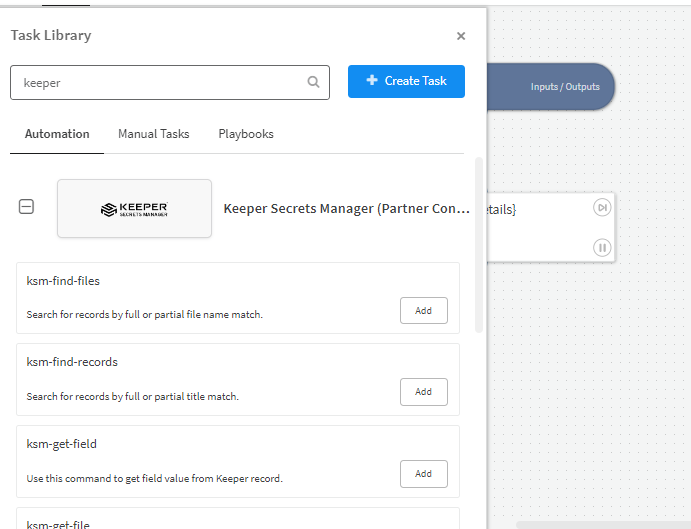
To use Keeper Secrets Manager commands in your XSOAR playbooks, click "Task Library" and search for "Keeper" to show all the available commands.
List Available Keeper Commander
Select a command to use and fill in the required fields if any.
### Example: Get a Password From a Keeper Record
Fetch a password from the Keeper Vault to login to other services in your playbook.
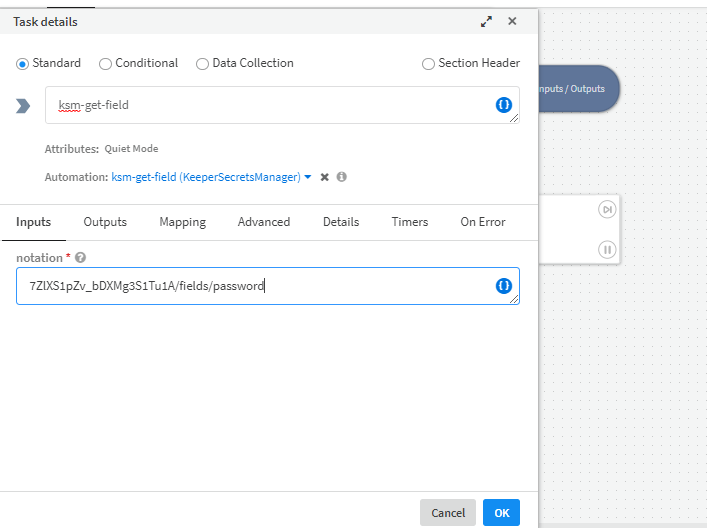
1. Search for the "ksm-get-field" command and click to add it to your playbook
2. Enter Keeper notation pointing to the password using the UID of the record you want to use.\
This will look like: `/fields/password`
*Any field in a record can be fetched this way. See* [*Keeper Notation documentation*](/keeperpam/secrets-manager/about/keeper-notation.md) *for more information*
3. Click "OK" to add the task to your playbook
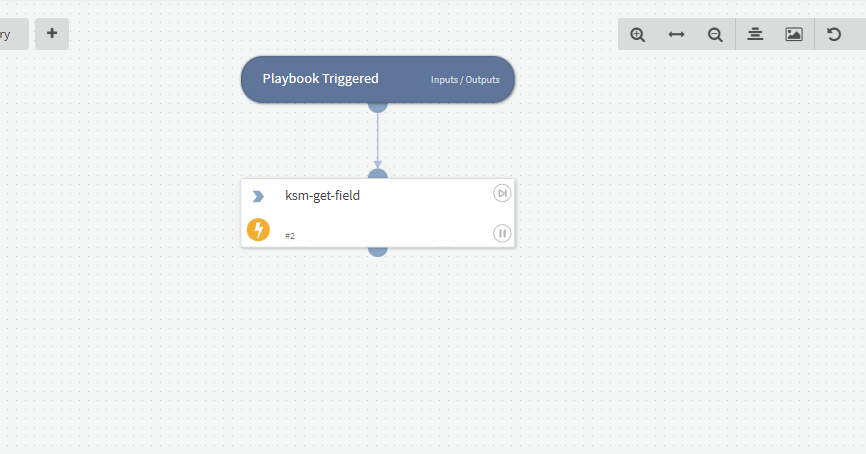
You can add additional tasks after the ksm-get-field task to use the password.
---
# Agent Instructions: Querying This Documentation
If you need additional information that is not directly available in this page, you can query the documentation dynamically by asking a question.
Perform an HTTP GET request on the current page URL with the `ask` query parameter:
```
GET https://docs.keeper.io/keeperpam/secrets-manager/integrations/xsoar.md?ask=
```
The question should be specific, self-contained, and written in natural language.
The response will contain a direct answer to the question and relevant excerpts and sources from the documentation.
Use this mechanism when the answer is not explicitly present in the current page, you need clarification or additional context, or you want to retrieve related documentation sections.