# Azure AD Users

<figure><img src="https://762006384-files.gitbook.io/~/files/v0/b/gitbook-x-prod.appspot.com/o/spaces%2F-MJXOXEifAmpyvNVL1to%2Fuploads%2FOaU06jIIVQ2eI98mA3G9%2FScreenshot%202023-05-05%20at%2010.08.44%20AM.png?alt=media&#x26;token=1b306751-8e1c-4840-9d9b-6b1e07cd8714" alt=""><figcaption></figcaption></figure>

## Overview <a href="#managed-directory-services" id="managed-directory-services"></a>

In this guide, you will learn how to rotate passwords for Azure AD users. In Keeper, the [PAM Configuration](https://docs.keeper.io/en/keeperpam/privileged-access-manager/getting-started/pam-configuration) contains all of the information needed to rotate passwords. The record containing the Azure AD user accounts to be rotated are stored in the PAM User record.

The Keeper Gateway uses Azure APIs to rotate the credentials defined in the PAM User records.

* See the [Azure Overview](https://docs.keeper.io/en/keeperpam/privileged-access-manager/password-rotation/rotation-use-cases/azure/azure-ad-users) for a high level overview and getting started with Azure

## Prerequisites

This guide assumes the following tasks have already taken place:

* [Rotation enforcements](https://docs.keeper.io/en/keeperpam/privileged-access-manager/getting-started/enforcement-policies) are configured for your role
* A Keeper Secrets Manager [application](https://docs.keeper.io/en/keeperpam/privileged-access-manager/getting-started/applications) has been created
* Your Azure environment is [configured](https://docs.keeper.io/en/keeperpam/privileged-access-manager/getting-started/pam-configuration/azure-environment-setup) per our documentation
* Your [Keeper Gateway](https://docs.keeper.io/en/keeperpam/privileged-access-manager/getting-started/gateways) is online

## 1. Set up PAM Configuration <a href="#managed-directory-services" id="managed-directory-services"></a>

Note: You can skip this step if you already have a PAM Configuration set up for Azure.

Prior to setting up the **PAM Configuration**, make sure that:

* A Keeper Secrets Manager [application](https://docs.keeper.io/en/keeperpam/privileged-access-manager/getting-started/applications) has been created
* A Keeper Rotation [gateway](https://docs.keeper.io/en/keeperpam/privileged-access-manager/getting-started/gateways) is already installed, running, and is provisioned in the Keeper Secrets Manager application you created.
* We recommend installing the Keeper Gateway service in a machine within the Azure environment in order to rotate other types of targets.

In the left menu of the vault, select "Secrets Manager", then select the "PAM Configurations" tab, and click on "New Configuration".\
\
The following table lists all the **required** fields that needs to be filled on the PAM Configuration Record with your information:

<table><thead><tr><th width="193">Field</th><th>Description</th><th data-hidden></th></tr></thead><tbody><tr><td><strong>Title</strong></td><td>Configuration name, example: <code>Azure AD Configuration</code></td><td></td></tr><tr><td><strong>Environment</strong></td><td>Select: <code>Azure</code></td><td></td></tr><tr><td><strong>Gateway</strong></td><td>Select the Gateway that is configured on the Keeper Secrets Manager application and has network access to your Active Directory server from the pre-requisites</td><td></td></tr><tr><td><strong>Application Folder</strong></td><td>Select the Shared folder where the PAM Configuration will be stored. We recommend placing this in a shared folder with the admin accounts.</td><td></td></tr><tr><td><strong>Azure ID</strong></td><td>A unique ID for this instance of Azure. This is for your reference and can be anything, but its recommended to be kept short<br>Ex: <code>Azure-1</code></td><td></td></tr><tr><td><strong>Client ID</strong></td><td>The unique Application (client) ID assigned to your app by Azure AD when the application was registered</td><td></td></tr><tr><td><strong>Client Secret</strong></td><td>The client credentials secret for the Azure application. It’s random looking text.</td><td></td></tr><tr><td><strong>Subscription ID</strong></td><td>The UUID that identifies your subscription (i.e. Pay-As-You-GO) to use Azure services.</td><td></td></tr><tr><td><strong>Tenant ID</strong></td><td>The UUID of the Azure Active Directory</td><td></td></tr></tbody></table>

## 2. Set up one or more PAM User Records

Keeper Rotation uses the Azure Graph API to rotate the **PAM User** records in your Azure environment. The PAM User records need to be in a shared folder that is shared to the KSM application created in the pre-requisites.

The following table lists all the required fields that needs to be filled on the **PAM User** record with your information:

<table><thead><tr><th width="194.5">Field</th><th>Description</th></tr></thead><tbody><tr><td><strong>Title</strong></td><td>Keeper record title i.e. <code>Azure User1</code></td></tr><tr><td><strong>Login</strong></td><td>Case sensitive username of the account being rotated. The username has to be in one of the following formats:<br><code>domain\username</code> <code>username@domain</code></td></tr><tr><td><strong>Password</strong></td><td>Providing a password is optional. Performing a rotation will set one if this field is left blank.</td></tr></tbody></table>

{% hint style="info" %}
There should only be one PAM User record for each Azure AD user. Having multiple PAM User records with the same user/login will cause conflicts.
{% endhint %}

## 3. Configure Rotation on the PAM User Records

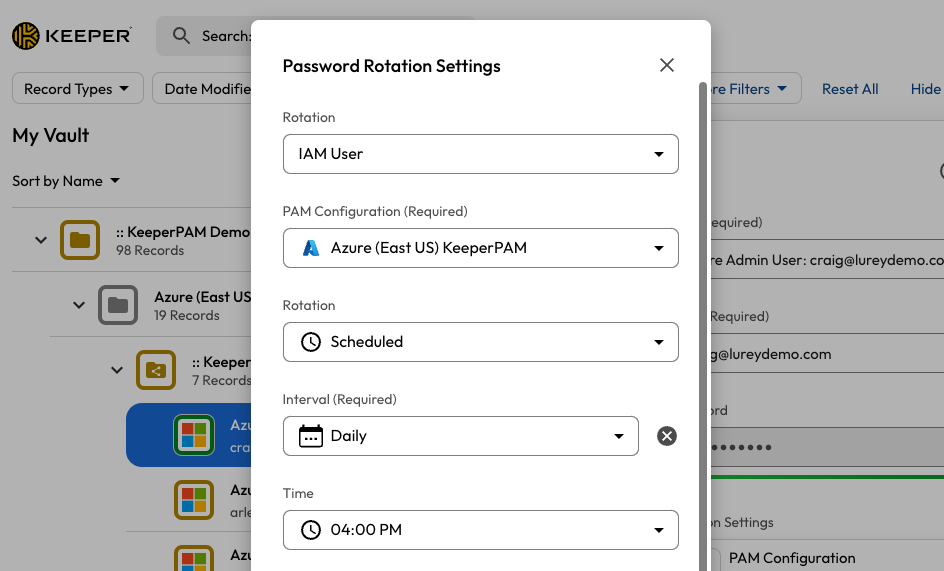
Select the PAM User record(s) from Step 3, edit the record and open the "Password Rotation Settings".

<figure><img src="https://762006384-files.gitbook.io/~/files/v0/b/gitbook-x-prod.appspot.com/o/spaces%2F-MJXOXEifAmpyvNVL1to%2Fuploads%2FGqYNq5s9cwgZSWE47dyR%2FScreenshot%202023-05-05%20at%209.13.33%20AM.jpg?alt=media&#x26;token=e98596c8-14ba-4d9a-8e31-cd913c8092d4" alt=""><figcaption><p>Rotation Settings</p></figcaption></figure>

* Select "IAM User" for the rotation method, since this uses Azure APIs.
* The "Rotation Settings" should select the **PAM Configuration** setup previously.
* Select the desired schedule and password complexity.
* Upon saving, the rotation button will be enabled and available to rotate on demand, or via the selected schedule.

Any user with `edit` rights to a **PAM User** record has the ability to setup rotation for that record.

<figure><img src="https://762006384-files.gitbook.io/~/files/v0/b/gitbook-x-prod.appspot.com/o/spaces%2F-MJXOXEifAmpyvNVL1to%2Fuploads%2FIv98G7hGZIgGxGXLv8sV%2FScreenshot%202025-02-08%20at%2011.58.21%E2%80%AFAM.png?alt=media&#x26;token=afe93a6c-e0c1-4402-b2f8-f0bda3ba7d26" alt=""><figcaption><p>Rotation Settings for Azure AD Users</p></figcaption></figure>