Slack App

Slack Approval Workflow Integration with the Keeper Vault and Endpoint Privilege Manager

This feature is currently in PUBLIC BETA. Please open an issue with feedback or feature requests.

Overview

The Keeper Slack App helps achieve zero standing privilege and streamlines credential workflow requests and approvals directly from Slack. The customer hosts the Slack agent and Commander Service Mode, ensuring that zero knowledge is maintained with end-to-end encryption.

Features

Feature
Description

Record Access Requests

Request access to specific Keeper records with justification, custom permissions and access time limits. This includes standard vault records and KeeperPAM resources.

Folder Access Requests

Request access to specific Keeper Shared Folders with justification, custom permissions and access time limits.

One-Time Share Requests

Request for a one-time share, password reset or other dynamic password generation with a self-destructing share link. The one-time share can also be editable, offering bi-directional sharing capabilities.

Endpoint Privilege Manager Approvals

Keeper Endpoint Privilege Manager (PEDM) just-in-time elevation approvals in realtime through a dedicated Slack channel.

SSO Cloud Device Approvals

Perform approvals of SSO Cloud devices directly through Slack, if the Keeper Automator service is not deployed.


Prerequisites

System Requirements

To maintain zero knowledge and full end-to-end encryption, the Keeper Slack App and Commander Service Mode containers are hosted by each customer on their own infrastructure to interact with the Slack cloud service.

Requirement
Details

Linux VM

Any VM in the cloud or on-prem which can establish https/443 outbound connections to Slack and Keeper services.

Docker

Docker is the recommended method for setting up the service

Keeper Commander

Service Mode running and accessible

Keeper Secrets Manager

Either Keeper Secrets Manager or KeeperPAM license used for retrieving the secret configuration data. This is optional but preferred.

Slack Workspace

Requires admin access to install and configure apps

Commander Commander service mode commands used:

Keeper Command
Usage in Slack App

search

Search records/folders by query or UID

share-record

Grant access to records with permissions

share-folder

Grant access to shared folders

record-add

Create new records

one-time-share

Generate one-time share links

pedm

Endpoint Privilege Manager (PEDM) approval workflows (optional)

device-approve

SSO Cloud device approval actions

Setup Steps

In the below setup instructions, we'll be using the example of a Linux instance in AWS. This example also utilizes Keeper Secrets Manager to secure the configurations used by the services.

Step 1. Commander Setup

In order for the service to authenticate and run commands in the Keeper tenant, an authorized Commander configuration file is needed. You can create this on your host computer or workstation.

  • Install Keeper Commander locally on your machine

  • If necessary, create a new Keeper user account dedicated to this integration, who has access to the set of records/folders which are being managed, and the ability to perform record and folder sharing.

  • Login to Commander locally with the Keeper user account.

  • After login to Commander, type the following this-device commands to generate a persistent session configuration file:

  • On the local machine, there will now be a configuration file in the home directory .keeper/config.json which contains the Commander configuration data.

  • In the Keeper vault UI, create a shared folder, e.g. "Slack App Config"

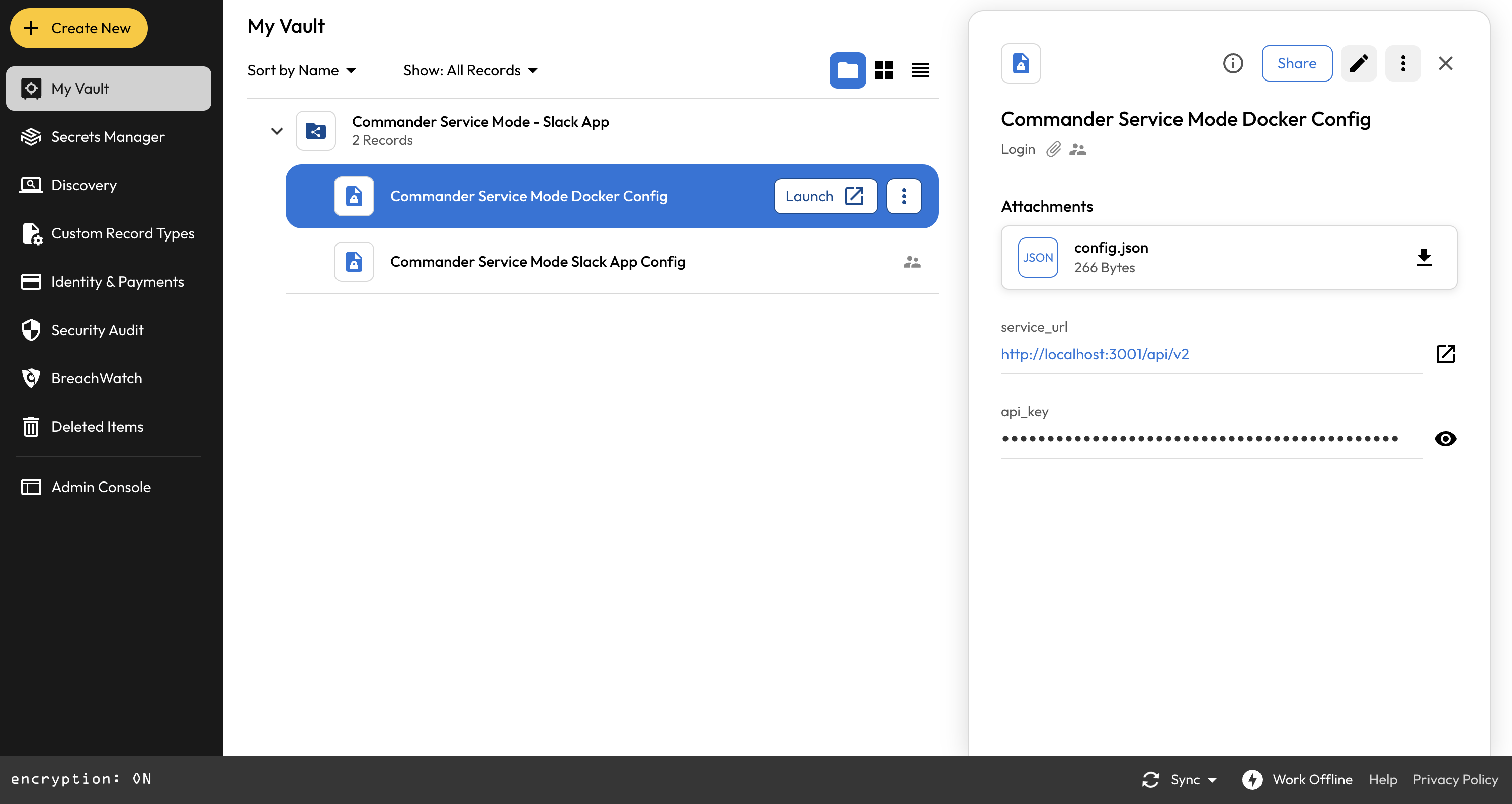
  • In the Keeper vault UI, create a File Attachment record called "Commander Config for Slack App". and upload the config.json file to the record as seen below. Note the Record UID.

  • Delete the config.json file on the local machine so it doesn't interfere with the Slack App.

Commander Configuration File for Slack App stored in a vault record
  • Click on Secrets Manager and create an application.

  • Click on Create Application and name the application "Slack App for Commander Service Mode". Assign the "Slack App Config" folder with "can edit" permission.

  • Generate a token and discard it, as this won't be used.

  • Click on the Application, then click on Devices > Add Device and generate a Base64 configuration called "Slack Configuration".

  • Download or copy the contents of the base64 configuration. This will be used in the Docker Compose in Step 2 of the setup below.


Step 2. Set up the Commander Service

In this section, you will set up a Docker Compose environment on a Linux VM or machine where the Commander Service will be running.

  • Launch a Linux VM and connect to the machine through SSH

  • Install docker and docker-compose (helpful instructions are here)

  • Create a file called docker-compose.yaml which contains the following:

  • Populate the Base64 config and Record UID from the previous setup steps.

Field
Description

BASE64_CONFIG_COMMANDER

Base64 configuration for Keeper Secrets Manager to pull the commander configuration file

RECORD_UID_COMMANDER

Record UID containing the Commander configuration file

Command List

Limit the commands based on the feature you plan to allow. For example, only include pedm and device-approve if you plan to use these endpoint and device approval features.

Start up the Commander service on the host VM:

Then view the resulting logs to locate the API key generated by the service.

This will display the section of logs that contains the key:

Save this key, as it will be populated into the .env file in Step 5.

Save the Generated API key value for use in Step 5 below


Step 3. Create Slack App

In this section, you will create the Slack App in your Slack workspace as the administrator and gather the necessary configuration values.

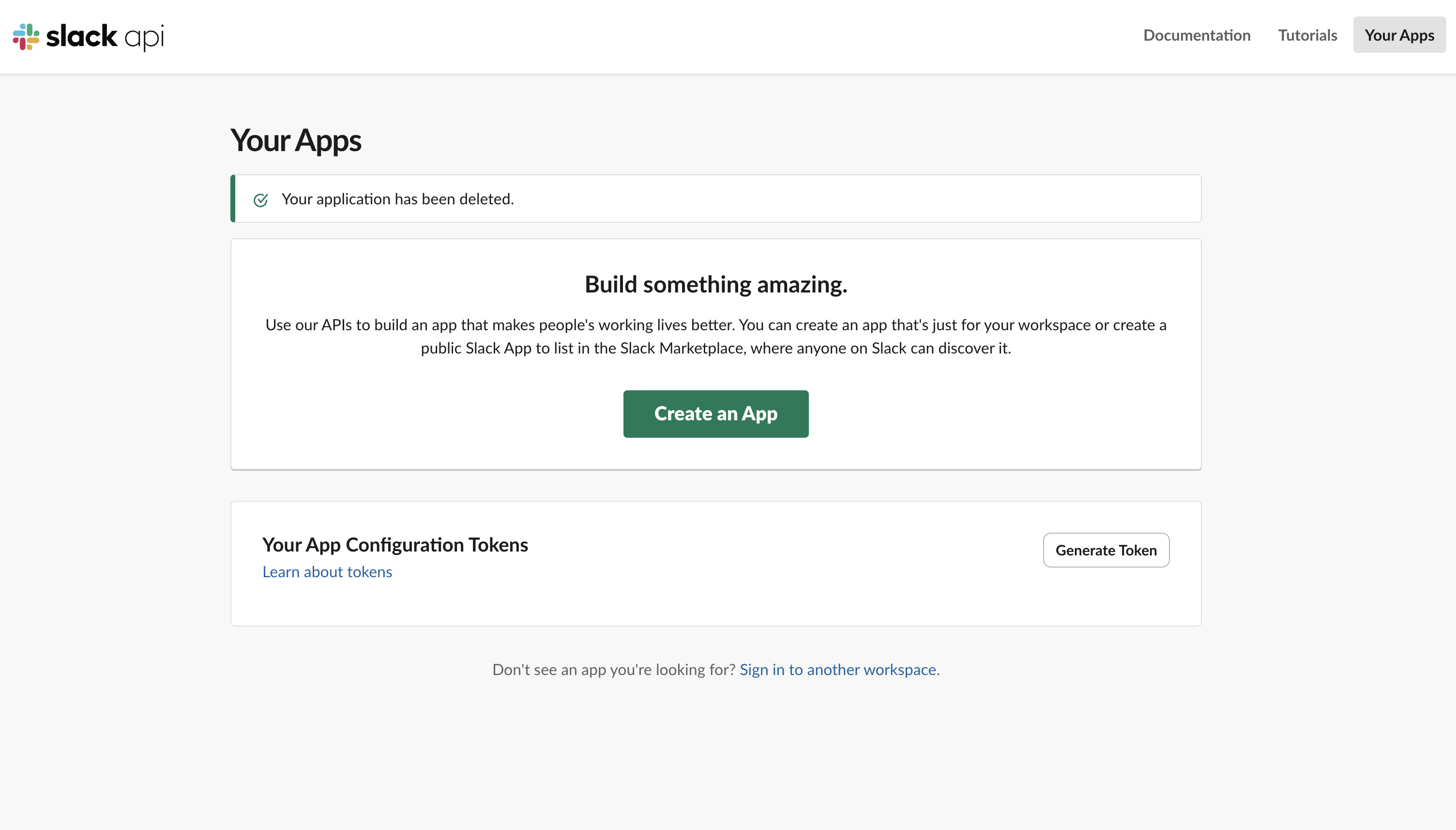
  • As the Slack Admin, go to api.slack.com/apps

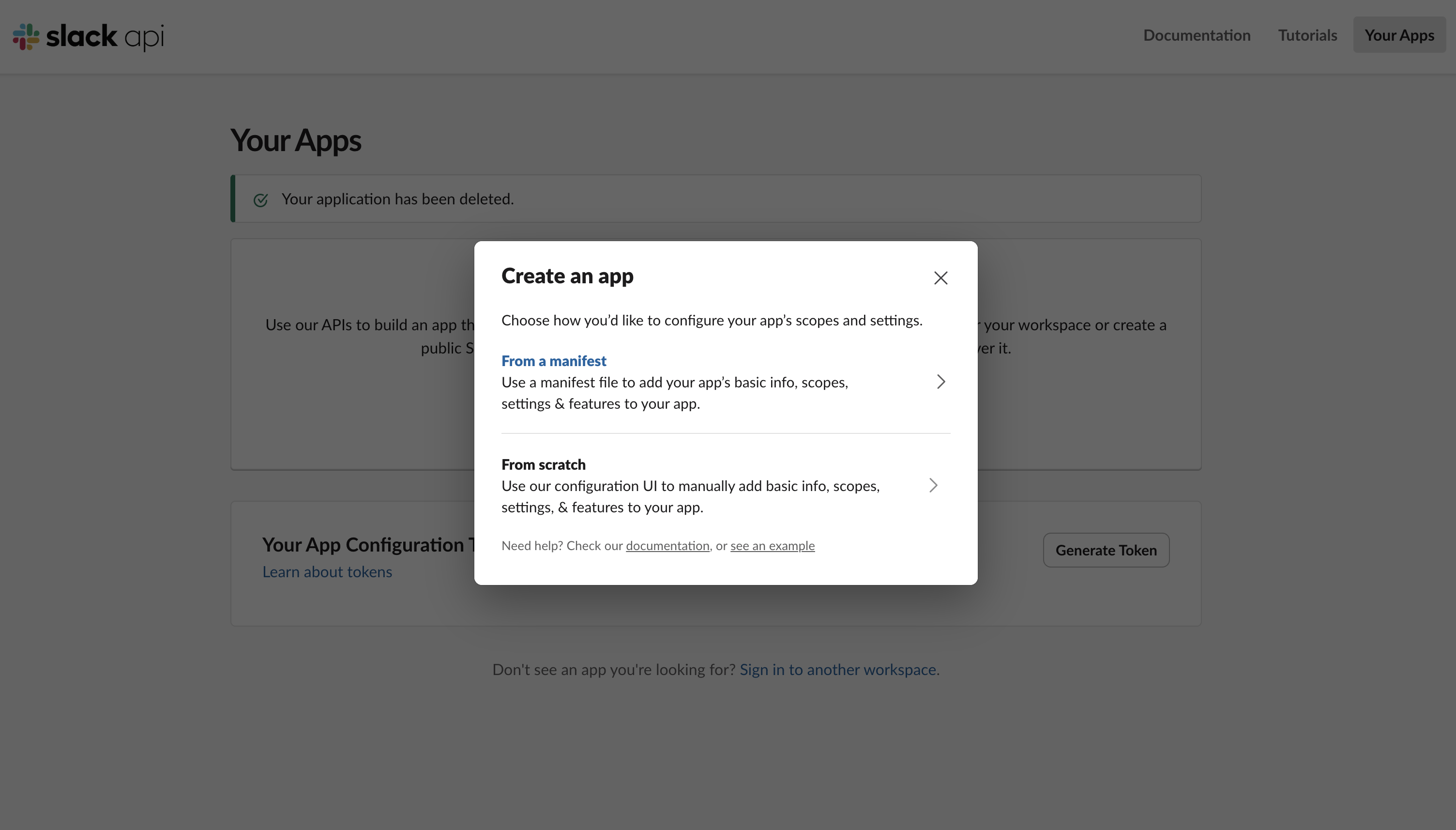
  • Click Create New AppFrom an app manifest

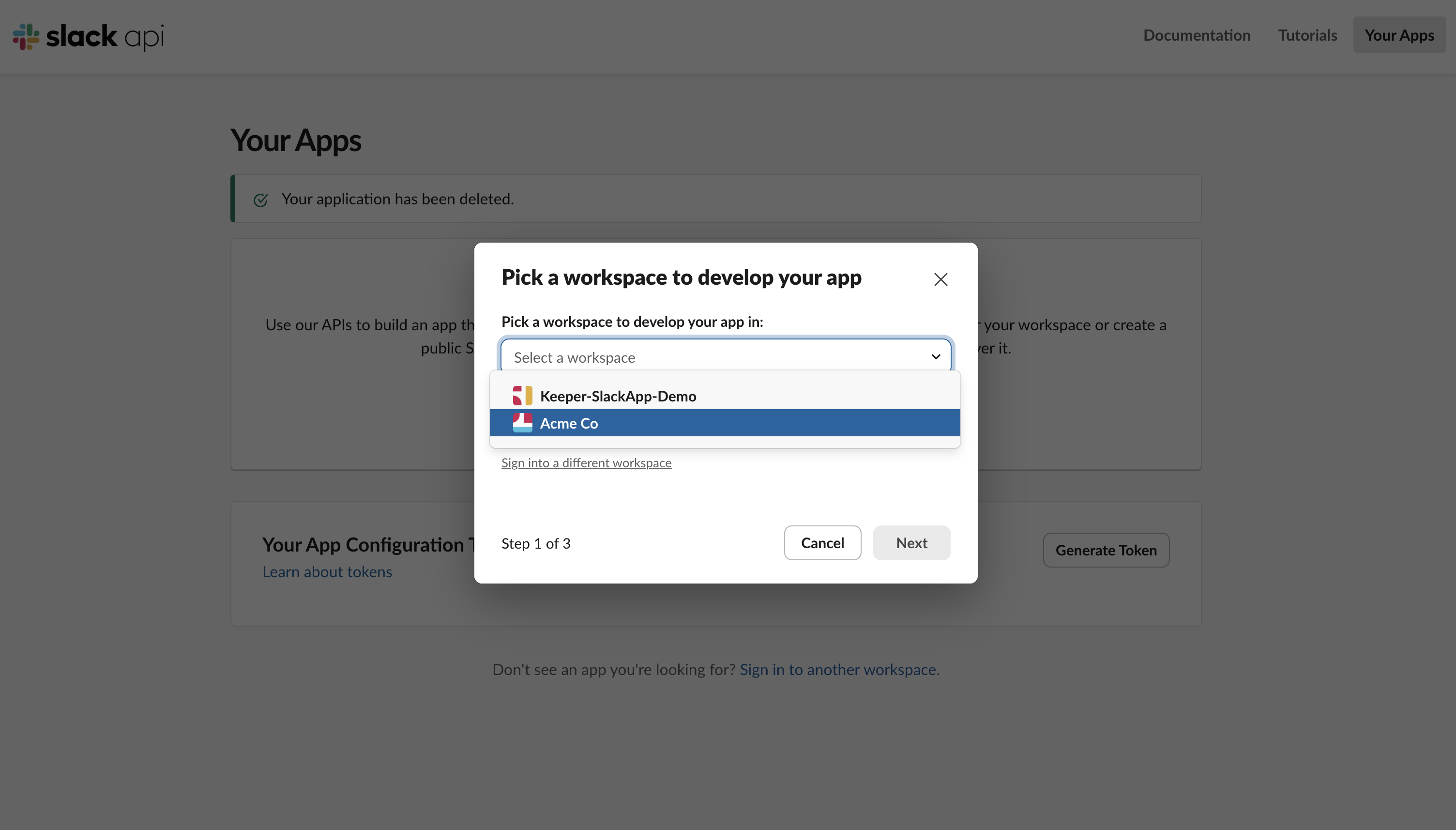
  • Select your workspace

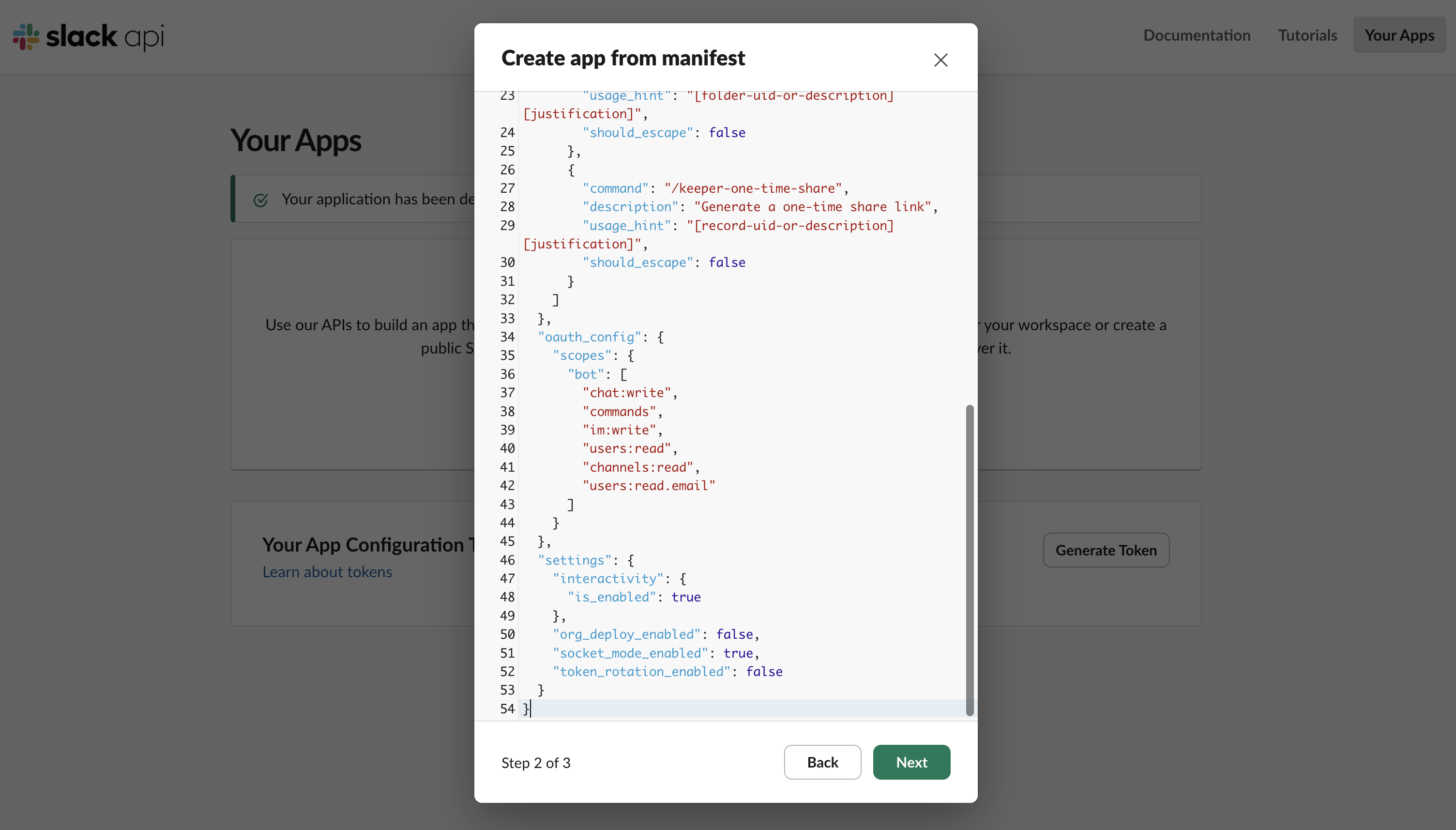
  • Paste the JSON content below into the manifest file

  • Review setting of the slack app and create it.

  • Go to Basic InformationDisplay Information and upload a Keeper icon for your app's profile picture. Below is a 512x512 Keeper icon that can be downloaded for use.

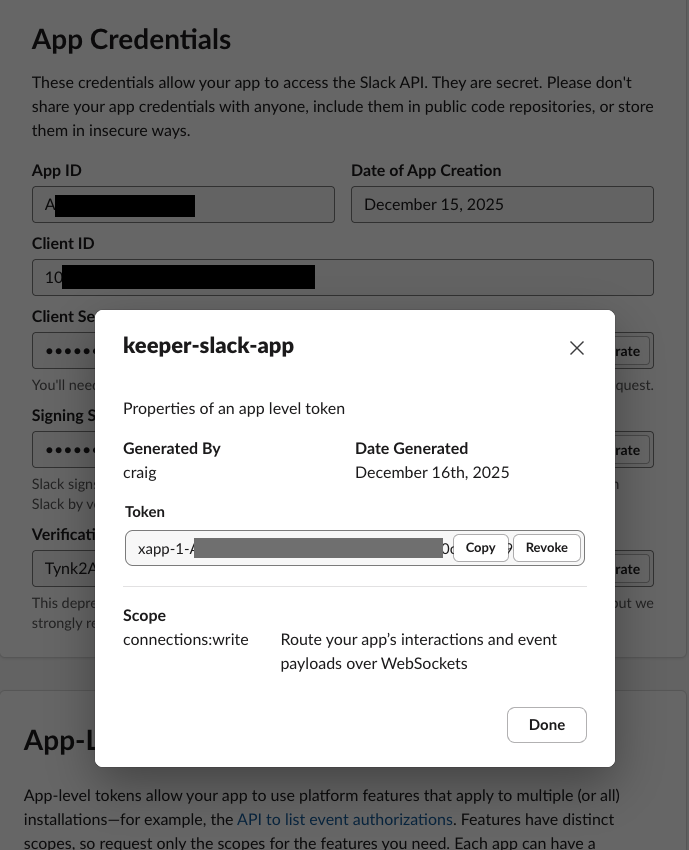
  • On the left side, click on Basic InformationApp-Level TokensGenerate Token and Scopes, and generate an app-level token called "keeper-slack-app" with the connections:write scope. Save the token to use as the "App Token" in the next step.

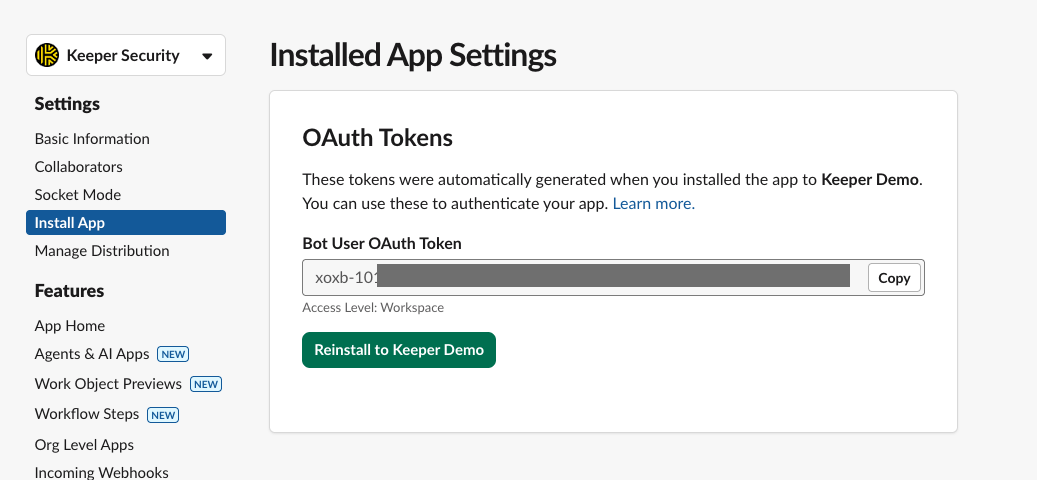
  • On the left side, click on Install App, click Install to [Workspace], then save the Bot User OAuth Token for the next step.

After creating the app, collect these credentials:

Credential
Location

App Token

Basic Information → App-Level Tokens → Generate

Bot Token

OAuth & Permissions → Bot User OAuth Token

Signing Secret

Basic Information → App Credentials

Save the Generated App Token, Bot Token and Signing Secret for Step 5.


Step 4. Create Approvals Channel

  • In your Slack workspace, create a Private channel (e.g., #keeper-vault-approvers)

  • Invite the Keeper bot to the approval channel created:

    • Option 1. In the approvals channel, type /invite @Keeper Security.

    • Option 2. Click the channel name → Settings → Integrations → Add an App → Search for Keeper Security → Add

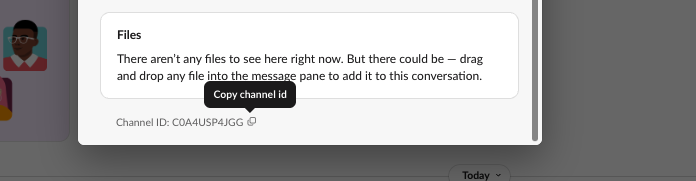
  • Copy the Channel ID (right-click channel → View Details → copy ID at bottom)

  • The app is not yet ready to use, please first proceed through Step 5.

Save the Channel ID for Step 5


Step 5. Run the Slack App Container

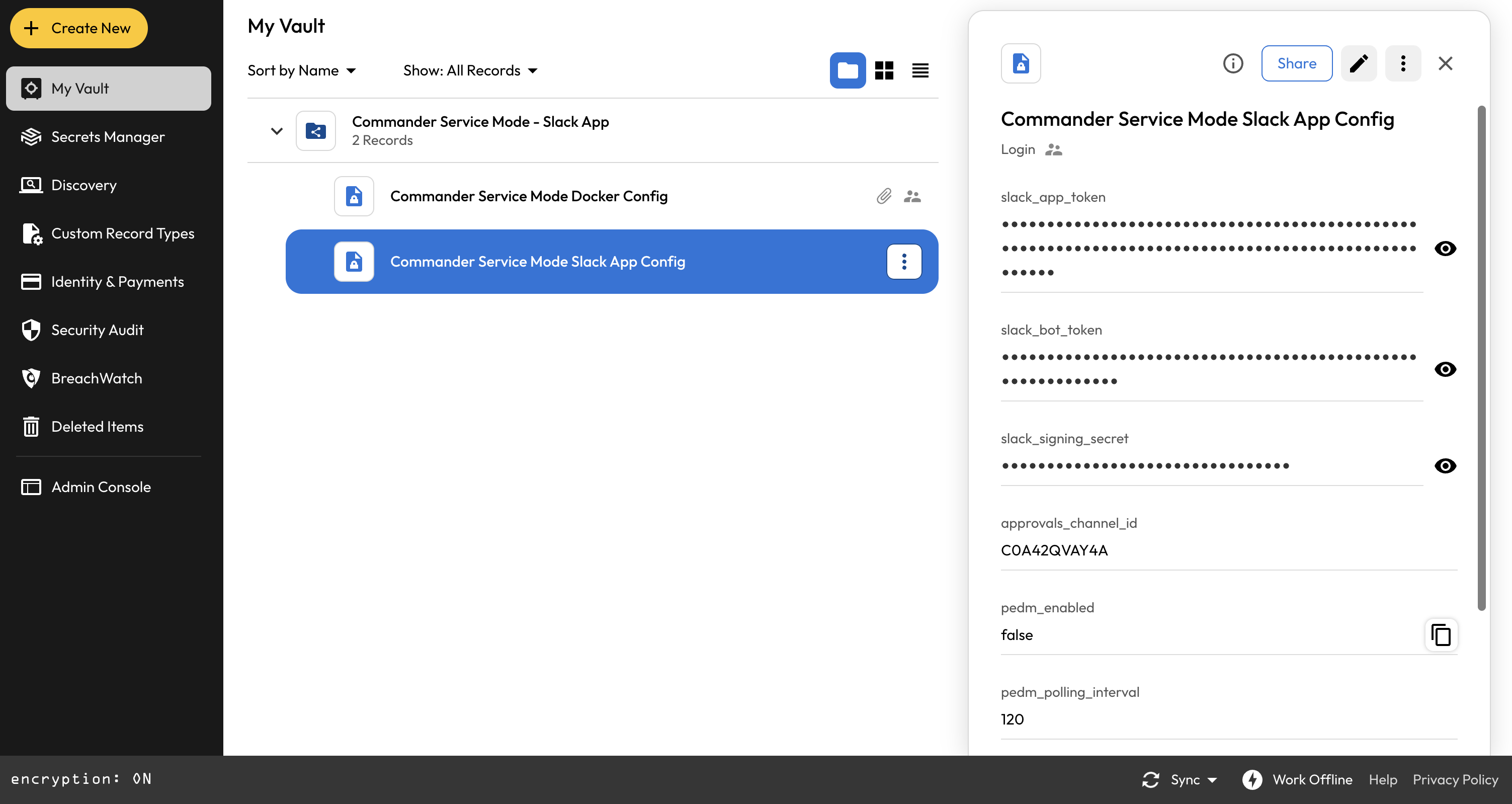
Back on the Linux VM, modify the docker-compose.yaml file to include the Keeper Slack App service as seen below. The "commander" section will remain the same, you will just add the slack-app section underneath.

In the same location as the docker-compose.yaml file, create a file called .env. This file contains the Slack configuration secrets and the Commander API key.

Edit the .env file based on your local configuration. If the exact steps were followed above (steps 1-4), you will have the necessary credentials to populate the file.

Populate this .env file with all of the parameters from Steps 1-4. Some fields are optional, based on which features you would like to utilize in the integration.

Parameter
Value
Notes

SLACK_APP_TOKEN

From Step 3

From the Slack App configuration page

SLACK_BOT_TOKEN

From Step 3

From the Slack App configuration page

SLACK_SIGNING_SECRET

From Step 3

From the Slack App configuration page

APPROVALS_CHANNEL_ID

From Step 4

The Channel ID which receives the notifications

KEEPER_SERVICE_URL

In this example, it will be: http://commander:8080/api/v2

This is based on the docker compose naming convention.

KEEPER_API_KEY

From Step 2

This API key may change based on docker status

PEDM_ENABLED

true or false

Optional - for EPM Approvals

PEDM_POLLING_INTERVAL_IN_SEC

Number of seconds between polling intervals. Recommended to be 120

Optional - for EPM Approvals

DEVICE_APPROVAL_ENABLED

true or false

Optional - for SSO Cloud Approvals only

DEVICE_APPROVAL_POLLING_INTERVAL_IN_SEC

Number of seconds between polling intervals. Recommended to be 120

Optional - for SSO Cloud Approvals only

In order to process Endpoint Privilege Manager approvals and SSO Cloud approvals, the Slack App service user must have administrative permissions "Manage Endpoint Privilege" and "Managein the Keeper Admin Console.

After the .env file has been populated, we will pull down the Keeper Slack App docker image alongside the location where your docker-compose.yaml file lives.

Then start up the Slack App container:

Monitor the logs to make sure everything starts up.

If everything is successful, you'll see the messages below:


Command Reference for Requesting User

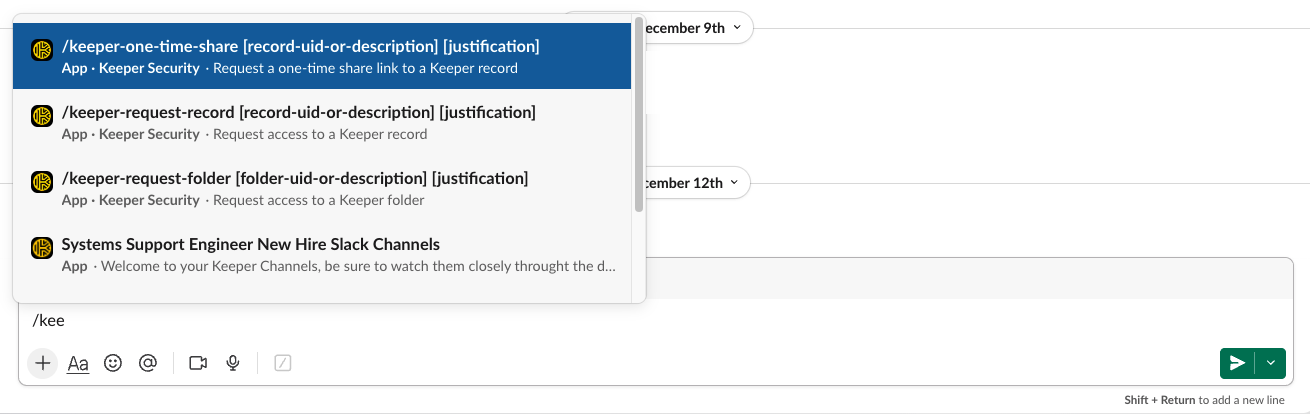
/keeper-request-record

Request access to a specific Keeper record.

Syntax:

/keeper-request-folder

Request access to a shared folder.

Syntax:

/keeper-one-time-share

Request a one-time share link for a record.

Syntax:


Screenshots

The below screenshots demonstrate the core features of the Keeper Slack App.

Interacting with the Slack App for Requests


Requesting Access to a Record (no UID provided)


Requesting Access to a Record (with UID provided)


Record Access Request - Admin View


Requesting Access to a Folder (with UID provided)


Folder Access Request - Admin View


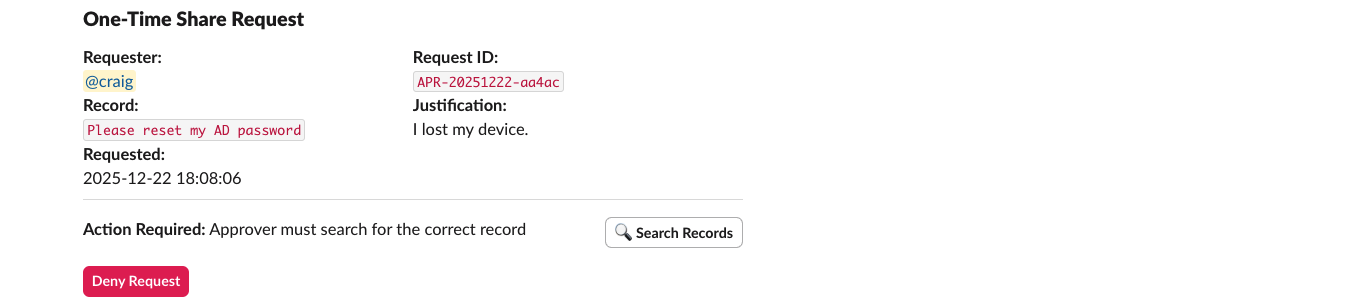
One-time Share Request for Password Reset


One-Time Share - Admin View with New Record Creation


One-Time Share - Admin View with Search for Existing Record


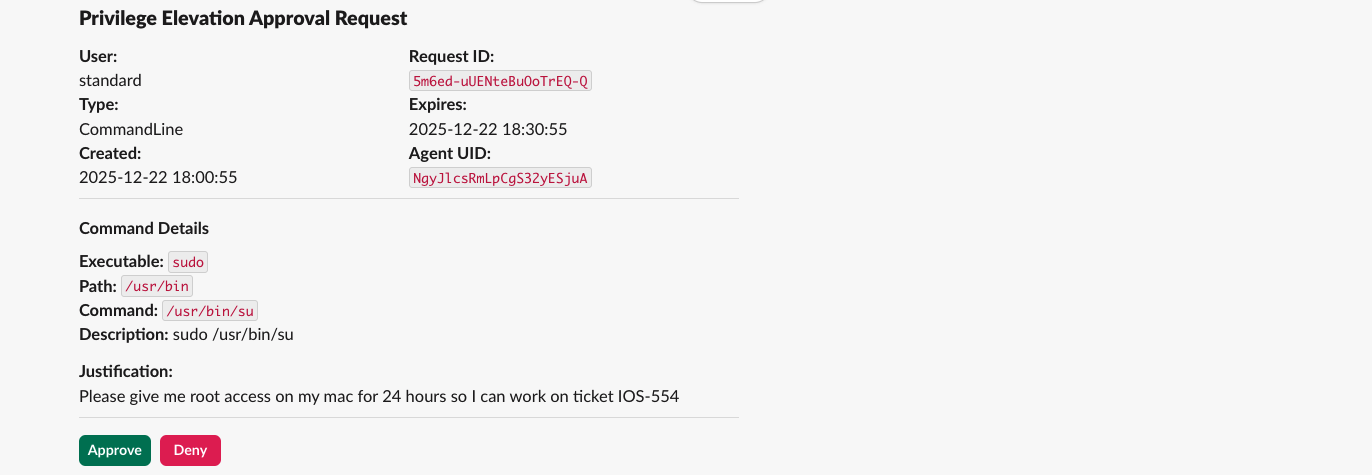
Endpoint Privilege Manager - Approval for Elevation


SSO Cloud Device Approval - Admin View


Updates

Updating the Commander Service Mode Container

Then view the resulting logs to locate the API key generated by the service.

This will display the section of logs that contains the key:

Save this key, and edit the .env file to update the KEEPER_API_KEY value.

Then restart the Slack App

Updating the Slack App Container

When an update is available for the Slack App, only the container needs to be updated and restarted. Use the following commands:


Troubleshooting

Startup Errors

Error
Cause
Solution

Commander Service Mode is prompting for master password

Persistent login session not enabled on Commander configuration

Follow Step1 to create a new JSON config file.

Missing required configuration: SLACK_APP_TOKEN

Config file not found or missing values

Create slack_config.yaml with all required fields or set environment variables

[WARN] Warning: Cannot reach Keeper Service Mode

Service Mode not running or wrong URL

Start Service Mode, verify service_url in config

invalid_auth

Wrong Slack bot token

Verify bot_token starts with xoxb- (not xapp- or xoxp-)

Socket Mode not enabled

App-level token missing or wrong

Generate App-Level Token with connections:write scope


Slack API Errors

Error
Cause
Solution

channel_not_found

Bot not invited to approvals channel

Run /invite @Keeper Commander in the channel

not_in_channel

Bot removed from channel

Re-invite the bot to the channel

missing_scope

Bot lacks required permissions

Reinstall app; ensure scopes: chat:write, commands, im:write, users:read, channels:read

invalid_blocks

Malformed Block Kit message

Check logs for specific block error; usually a data formatting issue

user_not_found

Invalid Slack user ID

User may have been deactivated from workspace


Service Mode Errors

Error
Cause
Solution

Failed to submit command: HTTP 403

API key invalid or missing

Verify api_key in config matches Service Mode

Failed to submit command: HTTP 404

Wrong API endpoint version

Use V2 endpoint: /api/v2/ (not /api/v1/)

Failed to submit command: HTTP 405

Using wrong HTTP method

Ensure Service Mode is running with queue enabled

Command timed out or failed

Service Mode overloaded or command not registered

Register command in Service Mode; increase timeout

No request_id received from API

Service Mode not using queue/async mode

Restart Service Mode with queue enabled (V2)

command not allowed

Command not registered in Service Mode

Add command to --commands list when starting Service Mode


Access Grant Errors

Error
Cause
Solution

Record Not Found

Invalid UID or record deleted

Verify the record UID exists in Keeper vault

Folder Not Found

Invalid folder UID

Verify the folder UID exists in Keeper vault

Invalid UID Type (record vs folder)

Used wrong command for item type

Use /keeper-request-folder for folders, /keeper-request-record for records

This user already has time-limited access...

Conflict with existing share

Revoke existing access first, then grant new permission

Share permissions require permanent access

Trying to use duration with Can Share/Edit & Share

Share permissions (Can Share, Edit & Share, Change Owner) are always permanent

User share...failed

Permission conflict on folder

User may have incompatible existing access; revoke and re-grant


Search & Modal Errors

Error
Cause
Solution

No records found matching...

Search query too specific or no matches

Try broader search terms; check record exists in vault

Search command timed out

Service Mode slow or vault very large

Increase max_wait in _poll_for_result() or use more specific search

Error processing search modal submission

Modal data corrupted or expired

Close modal and try again; check logs for specific error

Modal shows "Searching..." forever

Poll result never returned

Check Service Mode logs; verify search command is registered


One-Time Share Errors

Error
Cause
Solution

One-time share links can only be created for records

Tried to share a folder

Use /keeper-request-folder for folder access instead

Share link created but URL not found in response

Unexpected Service Mode response format

Check Service Mode version; verify one-time-share command registered

Failed to create one-time share

Record may not be shareable

Verify user has share permissions on the record


Record Creation Errors

Error
Cause
Solution

Failed to create record

Missing required fields or command error

Ensure title, login, and password are provided

Record created but UID could not be retrieved

Search after creation failed

Record exists but search timed out; manually search for it


PEDM Errors

Error
Cause
Solution

No PEDM data returned

PEDM feature not enabled

Enable PEDM in your Keeper enterprise settings. Ensure that your service user has necessary admin permissions.

PEDM sync failed

Service Mode can't reach PEDM server

Check network connectivity and PEDM configuration

Failed to approve/deny PEDM request

Request may have expired

Check if request is still pending; it may have auto-expired

Last updated

Was this helpful?